> ## Documentation Index
> Fetch the complete documentation index at: https://launchdarkly-preview.mintlify.site/llms.txt
> Use this file to discover all available pages before exploring further.
# Twilio Segment for metrics
> This topic explains how to configure your existing Segment account to send events to LaunchDarkly metrics so you can measure results immediately.
> For the complete documentation index, see [llms.txt](/llms.txt). For the full documentation snapshot, see [llms-full.txt](/llms-full.txt).
## Overview
This topic explains how to configure your existing [Twilio Segment](https://www.twilio.com/en-us) account to send events to LaunchDarkly metrics.
Sending Twilio Segment events to LaunchDarkly lets you use Twilio Segment events as LaunchDarkly metric events.
Twilio Segment can only send events to [custom conversion binary](/home/metrics/custom), [custom conversion count](/home/metrics/custom-count), and [custom numeric metrics](/home/metrics/custom-numeric). You cannot use Segment events with [clicked or tapped](/home/metrics/click) or [page viewed](/home/metrics/pageview) metrics.
After you connect LaunchDarkly and Twilio Segment, you will use the existing Twilio Segment Event Name as the LaunchDarkly metric event key when you create a custom metric.
Here is an image of a LaunchDarkly custom conversion binary metric with the event key called out:
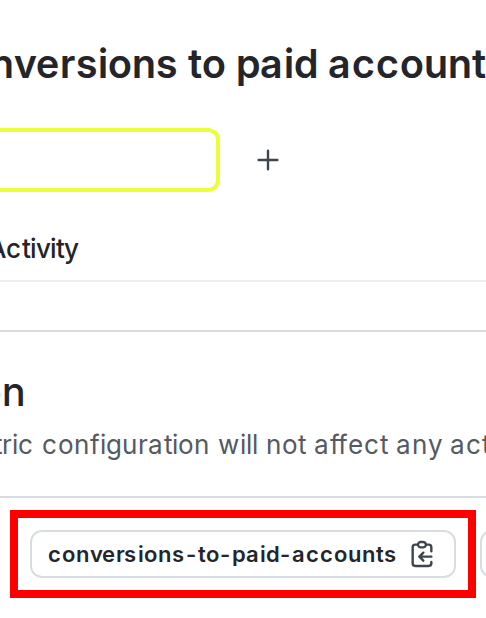
Events are specific to one LaunchDarkly environment. To learn more, read [Event keys](/home/metrics/metric-events#event-keys).
## Set up the Twilio Segment integration
To set up the integration, you must have access to your Twilio Segment and LaunchDarkly accounts. You will need them both to connect them to each other.
### Copy your Launch
Darkly client-side IDCopy your LaunchDarkly client-side ID by following the instructions at [View or copy keys and credentials](/home/account/environment/keys#view-or-copy-keys-and-credentials).
You will use this client-side ID in the next section.
### Connect Twilio Segment to Launch
DarklyTo connect Twilio Segment to LaunchDarkly:
1. Navigate to the Twilio Segment app's **Destinations** page.
2. Click **Add Destination**.
3. Find [LaunchDarkly (Actions)](https://www.twilio.com/docs/segment/connections/destinations/catalog/actions-launchdarkly) in the Destination Catalog.

4. Click **Configure LaunchDarkly (Actions)**.
5. Choose which Segment **Source** should send data to the LaunchDarkly destination.
6. Click **Next**.
7. Fill in the **Destination name** field with the name of your choice.
8. Click **Save**.
9. Paste the client-side ID from the previous procedure into the **LaunchDarkly client-side ID** field.
10. Click **Save Changes**.
11. Click the **Enable Destination** radio button.
12. Click **Save Changes**.

13. Navigate to the **Mappings** tab.
14. Click **New Mapping**.
15. Click **Track Event**.
16. The **Edit: Track Event** page guides you through the process of mapping [Segment Track events](https://www.twilio.com/docs/segment/connections/destinations/catalog/actions-launchdarkly#track-event) to LaunchDarkly metric events. The default settings should be acceptable for most customers.
To use Twilio Segments events in LaunchDarkly metrics, the Twilio Segment Event Name must be identical to the LaunchDarkly metric event key. To learn how to set the event key when creating a LaunchDarkly metric, read [Creating and managing metrics](/home/metrics/create-metrics).
17. Click **Save**.
18. On the **Mappings** tab, click the radio buttons associated with the **Track Event** mapping to begin sending events to LaunchDarkly. To learn more about track events, read [Twilio Segment's documentation](https://www.twilio.com/docs/segment/connections/spec/track). After you map Twilio Segment events to LaunchDarkly metric events, events from the source you choose appear as custom metric events in LaunchDarkly.
## Correlate Twilio Segment users with Launch
Darkly contextsLaunchDarkly correlates Twilio Segment metric events with LaunchDarkly context keys using the Twilio Segment user ID, if it is present. The Twilio Segment user ID must match a LaunchDarkly context key. If the Twilio Segment event does not contain a Twilio Segment user ID, then LaunchDarkly uses the Twilio Segment anonymous ID.If you are using Twilio Segment events in a LaunchDarkly experiment:
* the LaunchDarkly metric must be attached to a flag and the experiment must be recording, and
* the context must be included in the experiment for the event to be included in the experiment results.