> ## Documentation Index
> Fetch the complete documentation index at: https://launchdarkly-preview.mintlify.site/llms.txt
> Use this file to discover all available pages before exploring further.
# Managing integrations
> This topic explains how to manage push-based LaunchDarkly integrations.
> For the complete documentation index, see [llms.txt](/llms.txt). For the full documentation snapshot, see [llms-full.txt](/llms-full.txt).
## Overview
This topic explains how to manage push-based LaunchDarkly integrations. In a push-based integration, LaunchDarkly delivers events to the third-party integration through an integration service and logs whether the integration's configuration successfully received the event.
LaunchDarkly provides several tools to help set up and maintain push-based integrations, including status tables, error logs, and connection validation tests.
These tools are available for the following integrations:
* [AppDynamics](/integrations/appdynamics)
* [Datadog events](/integrations/datadog/events)
* [Dynatrace events](/integrations/dynatrace/events)
* [Elastic (ELK) Stack](/integrations/elastic-stack)
* [Honeycomb events](/integrations/honeycomb/events)
* [New Relic One events](/integrations/new-relic/events)
* [Microsoft Teams](/integrations/microsoft-teams)
* [Splunk](/integrations/splunk)
- [Splunk Observability Cloud](/integrations/splunk-observability/events)
## Check configuration statuses
LaunchDarkly provides a status table on the **Integrations** page for each push-based integration's configuration. The status table provides information about event successes and failures.
To view the status table, click the **expand arrow** next to the **Add integration** button for the integration you want to view:

The status table contains the following information:
* **Success events**: The total number of events LaunchDarkly successfully delivered since you created the integration configuration.
* **Most recent success**: How long ago LaunchDarkly delivered the last successful event.
* **Errors**: The total number of errors LaunchDarkly received from integration events since you created the integration configuration.
* **Most recent error**: How long ago LaunchDarkly received the most recent error. Click the link in this column to view the configuration's error log.
## The error log
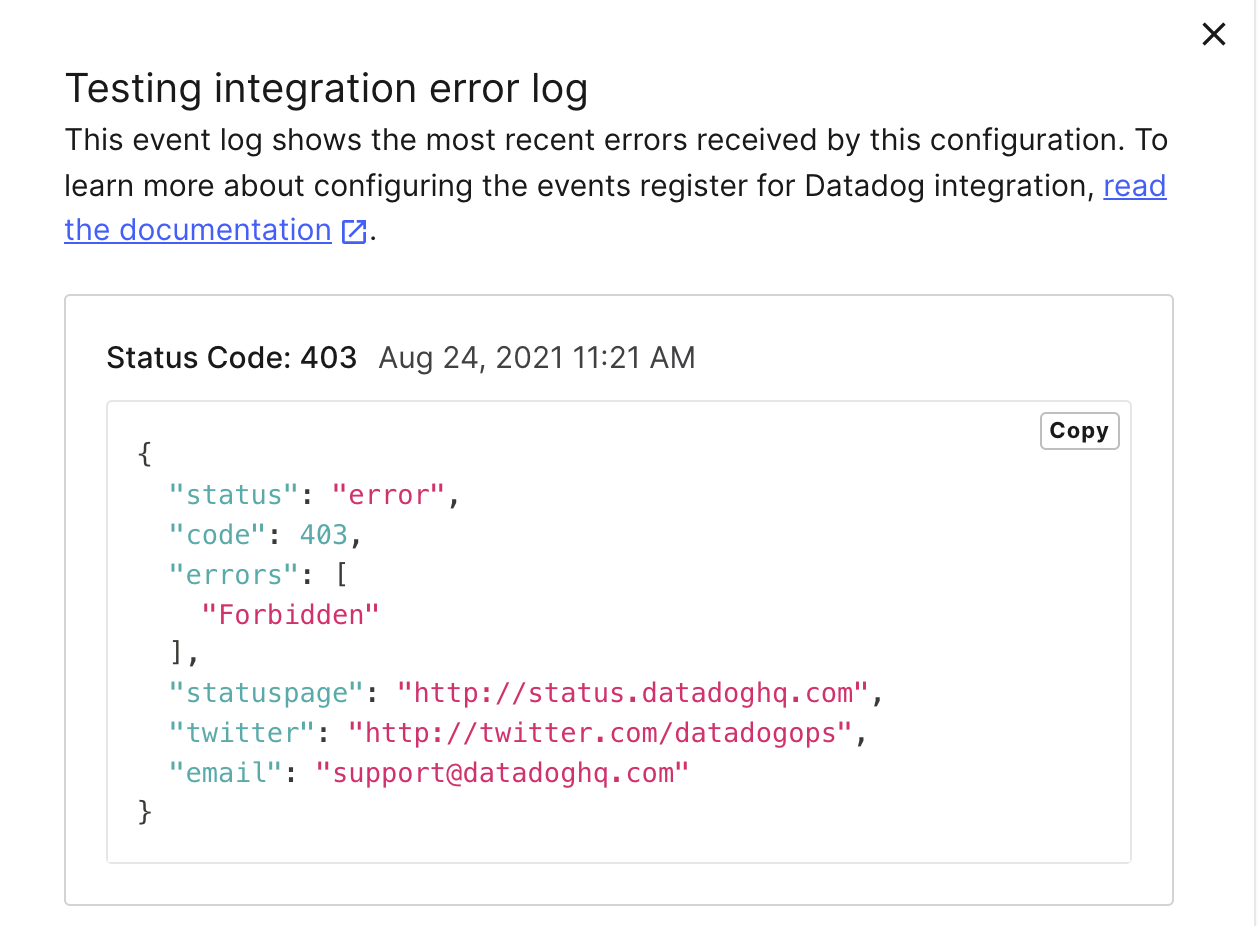
The error log shows a list of the most recent errors a given integration configuration has received.
To read an error log, click the link in the "Most recent error" column of a configuration's status table:

Error log entries contain the following information:
* **Status code**: The HTTP status code returned by the integration service.
* **Response body**: The HTTP response body returned by the integration service.
* **Event timestamp**: The timestamp when the error occurred. Your web browser determines the timezone.
Here is an image of the error log:
## Validate connections
After configuring an integration, you can test the connection to LaunchDarkly from the **Integrations** page.
To test a connection:
1. Click the **gear** icon in the left sidenav to view Organization settings.
2. Click **Integrations**
3. Find the integration you want to validate from the "Integrations" list.
4. Click the **expand arrow** next to the **Add integration** button. The list of configurations for that integration appears.
5. Next to the configuration you want to test, click either:
* the **pencil** icon, or
* the **three-dot** overview menu and select "Edit integration configuration."
The "Edit configuration" panel appears.

6. Click **Validate Connection**.
* If your connection is valid and LaunchDarkly delivered the test event successfully, then a success message appears.
* If your connection is not valid and LaunchDarkly could not deliver the test event successfully, then an error message appears with an HTTP status code.