> ## Documentation Index
> Fetch the complete documentation index at: https://launchdarkly-preview.mintlify.site/llms.txt
> Use this file to discover all available pages before exploring further.
# Warehouse health checks
> This topic explains how warehouse health checks help you troubleshoot connection errors with your Snowflake Data Export destination.
> For the complete documentation index, see [llms.txt](/llms.txt). For the full documentation snapshot, see [llms-full.txt](/llms-full.txt).
## Overview
This topic explains how warehouse health checks help you troubleshoot connection errors with your Snowflake Data Export destination.
Warehouse health checks evaluate three conditions:
* Whether the Data Export destination for a given project and environment is receiving data
* Whether required fields are present and valid
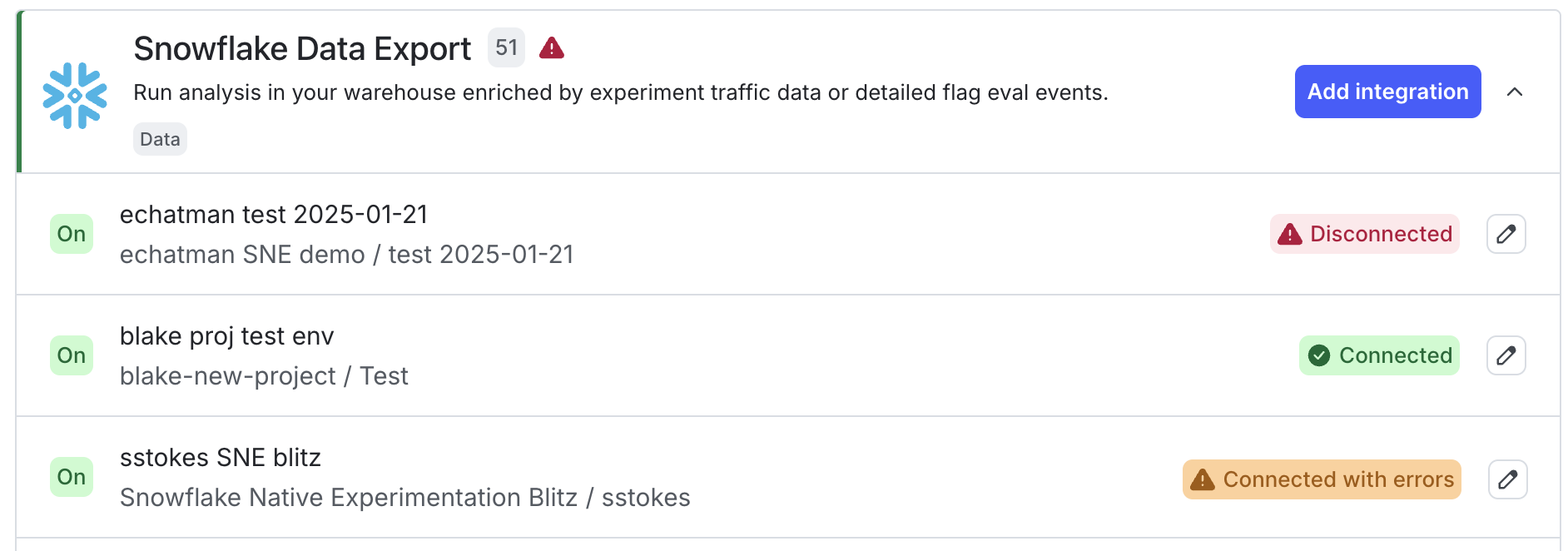
* Whether authentication to your warehouse is workingLaunchDarkly shows warehouse health warnings at the top of the **Integrations** page if there are any connection problems, and within the integrations section for individual Snowflake Data Export connections:
## View connection status
To view the connection status for an integration:
1. Click the **gear** icon in the left sidenav to open Organization settings.
2. Click **Integrations**.
3. Find your warehouse Data Export integration section and click the **down arrow** next to "Add integration." A list of existing destinations displays.
Each warehouse Data Export integration can display one of the following connection statuses:
* **Connected**: The integration is enabled and operating normally.
* **Connected with errors**: The integration is enabled but LaunchDarkly detected a problem, such as data delivery errors.
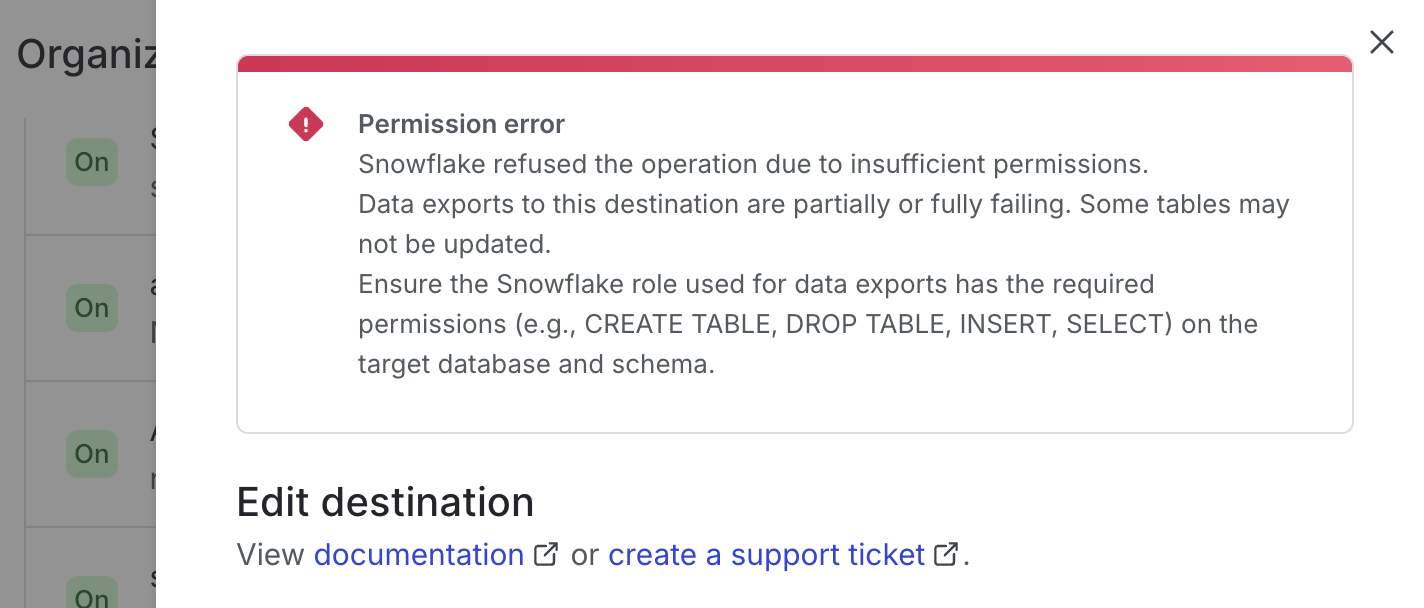
* **Disconnected**: The integration is not connected. You may need to update your credentials or complete setup for the integration. To view more information about a connection error, click the **pencil** icon next to the error to open the integration configuration panel. A warning message displays with information about the error: