> ## Documentation Index
> Fetch the complete documentation index at: https://launchdarkly-preview.mintlify.site/llms.txt
> Use this file to discover all available pages before exploring further.
# Managing flag triggers
> This topic explains how to disable, reset, and delete flag triggers.
> For the complete documentation index, see [llms.txt](/llms.txt). For the full documentation snapshot, see [llms-full.txt](/llms-full.txt).
## Overview
This topic explains how to disable, reset, and delete flag triggers.
## Manage existing flag triggers
You can modify existing triggers from the flag's [environment-specific settings](/home/flags/flag-settings) page. After you create a trigger, you can disable, reset, or delete it.
To modify an existing trigger:
1. Navigate to the feature flag for which you wish to edit a trigger.
2. Click on the **three-dot** overflow menu for the environment you want to edit a trigger in.
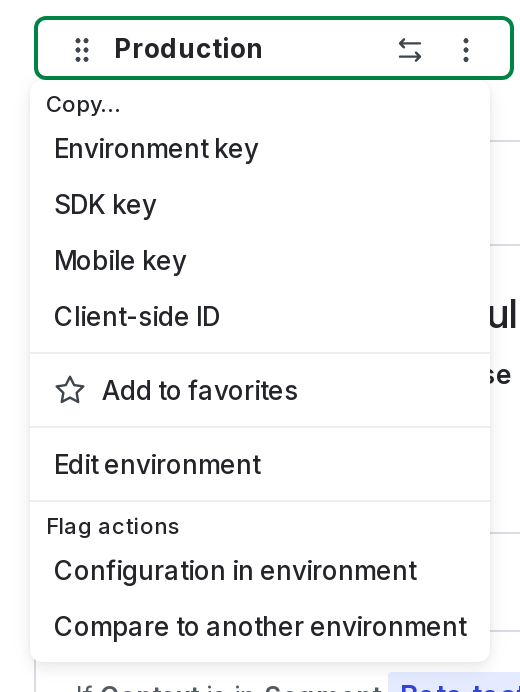
3. Select **Configuration in environment**. The "Environment configuration" screen appears.
4. Find the trigger you wish to modify and click the **overflow menu**. The trigger options appear:
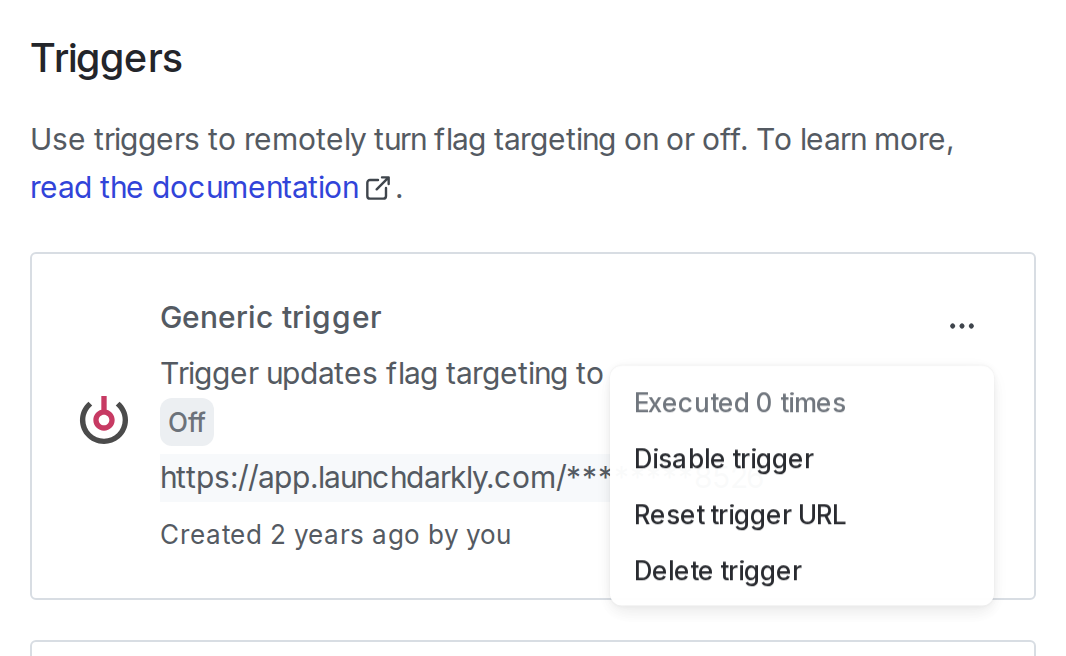
5. Choose the option you wish from the options menu:
* **Disable trigger**: If you choose this option, the trigger configuration is saved but the trigger stops working. To re-enable the trigger, open the **overflow menu** and choose "Enable trigger."
* **Reset trigger URL**: If you choose this option, LaunchDarkly generates a new URL for this trigger. Use this option if you lose a URL for an existing trigger. You must update any clients using this URL to use the new URL. Type the trigger's type and click **Reset** to confirm.
* **Delete trigger**: If you choose this option, the trigger and its URL are deleted permanently. Type the trigger's type and click **Delete** to confirm.
You can also use the REST API: [Update flag trigger](/api-reference/flag-triggers/update-flag-trigger), [Delete flag trigger](/api-reference/flag-triggers/delete-flag-trigger)