> ## Documentation Index
> Fetch the complete documentation index at: https://launchdarkly-preview.mintlify.site/llms.txt
> Use this file to discover all available pages before exploring further.
# Creating scheduled flag changes
> This topic explains how to create scheduled flag changes to take effect at a date in the future.
> For the complete documentation index, see [llms.txt](/llms.txt). For the full documentation snapshot, see [llms-full.txt](/llms-full.txt).
## Overview
This topic explains how to create scheduled flag changes to take effect at a date in the future.
## Create scheduled flag changes
To schedule a set of flag changes:
1. Navigate to the **Flags** list and select the flag for which you want to schedule targeting changes. The flag's **Targeting** tab appears.
2. Make the changes you want to the flag's targeting.
3. Click **Review and save**. The "Save changes" dialog appears.
4. Click the **calendar** icon.
5. Select a **Date** and **Time**.
6. Click **Update**.
7. If your environment requires approvals for flag changes, choose one or more reviewers from the **Reviewer(s)** menu.
8. (Optional) Add a **Comment** describing the changes.
9. Click **Schedule changes**.
Your changes have now been scheduled.
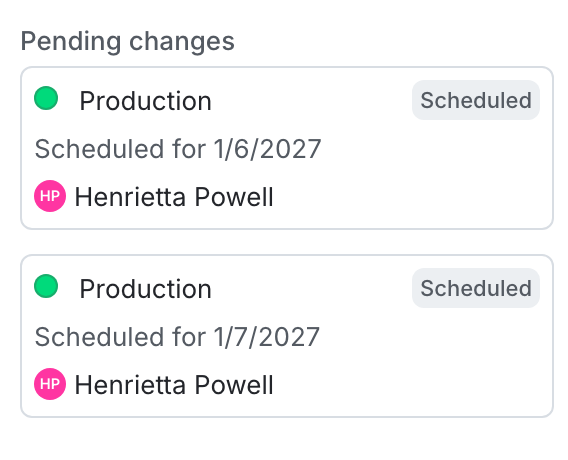
You can schedule multiple changes for different dates and times for a single flag. For example, you can implement a progressive rollout strategy by scheduling multiple sequential changes to targeting rules.
Here is an image of a flag with multiple changes scheduled:
If you use scheduled flag changes to schedule context removal dates, but an approver approves the request *after* the scheduled date and time of the context removal, LaunchDarkly prevents you from applying the change. To learn more about scheduling, read [Schedule context removal from segments](/home/flags/rule-based-segments#schedule-context-removal-from-segments).
You can also use the REST API: [Create scheduled changes workflow](/api-reference/scheduled-changes/create-scheduled-changes-workflow).
## Create scheduled flag changes that require approvals
Enterprise customers can require approvals for scheduled flag changes. If approvals are required, the change is marked "Pending Review" in the "Pending changes" panel.
If there are conflicts between changed flags and requested changes, approved and applied changes take precedence over pending or requested changes. To learn more, read [Manage conflicts with scheduled changes](/home/releases/scheduled-changes-manage#manage-conflicts-with-scheduled-changes).