> ## Documentation Index
> Fetch the complete documentation index at: https://launchdarkly-preview.mintlify.site/llms.txt
> Use this file to discover all available pages before exploring further.
# Live events
> This topic explains how to use live events. The Live events page gives you real-time insight into the events your application is sending to LaunchDarkly, so you can ensure that you've set up LaunchDarkly correctly.
> For the complete documentation index, see [llms.txt](/llms.txt). For the full documentation snapshot, see [llms-full.txt](/llms-full.txt).
## Overview
This topic explains how to use live events.
The **Live events** page gives you real-time insight into the events your application is sending to LaunchDarkly, so you can ensure that you've set up LaunchDarkly correctly. Different types of events appear, in detail or in summary, depending on what you want to view.
## About live events
The **Live events** page shows you a real-time stream of events arriving in LaunchDarkly from your app. When you first open the page, it connects to the event stream to show events as they appear. Establishing the connection can take up to 30 seconds, but the connection state updates to show you the connection process status. In high-volume environments, it may display sampled events, rather than 100% of events.
Click **Filters** and choose from the [Flags](#flag-events), [Contexts](#context-events), and [Metrics](#metric-events) filters to view subsets of your live events. Use the search bar to search for specific events by context or event type, key, or kind.
The **Live events** page does not process new events when it is not the active tab in your browser. Leave it open and visible to view new events as they occur. If you need to click around in your app to generate events, open your app in a second window.
The **Live events** page will time out after ten minutes of inactivity. After the timeout, click the prompt to keep loading events.
The connection state for the **Live events** page indicates if events have occurred in your environment recently:
* **Connected and waiting for events, last flag evaluation occurred N days/minutes/seconds ago**: LaunchDarkly is connected to a live event stream with recent events.
* **Connected and waiting for events, but we haven't seen any events in this environment before**: LaunchDarkly is connected to a live event stream, with no events received yet. If you receive this status frequently, it may mean that you have configured your SDK incorrectly. To learn more, read [SDKs](/sdk).
* **Disconnected from event stream**: LaunchDarkly is not connected to a live event stream. This may appear because of an internal error or network disruptions. Refresh your browser, or click the **Resume** button to reconnect:

If you don't see the events you expect on the **Live events** page, read the [troubleshooting article in the LaunchDarkly Customer Knowledge Base](https://support.launchdarkly.com/hc/en-us/articles/13689965912859-Troubleshooting-no-data-in-live-events).
## Flag events
To view live events by flag, use the **Flags** filter:
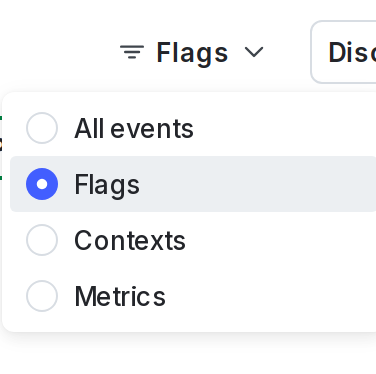
There are three types of events that can appear on the **Live events** page when you filter by flags:
* Feature events
* Summary events
* Debug events
### Feature events
Feature events include specific flag evaluation details. For more information about the contexts used in the flag evaluation, click **View attributes**. A dialog appears listing the context's attributes and includes a link to the [context details page](/home/flags/context-details). To view an example, read [Feature events](/integrations/data-export/schema-reference#feature-events).
### Summary events
Summary events display a summary of flag evaluation events. This saves data load. To view an example, read [Summary events](/integrations/data-export/schema-reference#summary-events).
Older SDK versions send detailed events for every evaluation, rather than summary events.
The minimum required version for each SDK to use `summary` events is:
* .NET: 5.0.0
* Go: 4.0.0
* Java: 4.0.0
* Node: 5.0.0
* Python: 6.0.0
* Ruby: 4.0.0
* Rust: 1.0.0-beta.1
* JavaScript: 2.0.0
* Android: 2.4.0
* iOS: 2.13.0
* PHP: The PHP SDK does not itself support `summary` events. However, when PHP is used with the LaunchDarkly [Relay Proxy](/sdk/relay-proxy), the LD Relay event forwarding mode has the ability to turn the events received from the PHP SDK into `summary` events. Other SDKs do not require a Relay Proxy update to use `summary` events.
* If you are using PHP SDK version 3.1.0 to 6.0.x and you are using the Relay Proxy with PHP, then you will need to upgrade the Relay Proxy to version 4.0.0 or higher.
* If you are using PHP SDK version 6.1.0 or higher and you are using the Relay Proxy with PHP, then you will need to upgrade the Relay Proxy to version 8.4.0 or higher.
### Debug events
Debug events describe feature flag evaluations. The information can help you to troubleshoot feature flag evaluations.
To enable debug events, click **Full fidelity details** next to the summary event for a flag. This sends an update to the LaunchDarkly SDK. Then, the SDK sets the `debugEventsUntilDate` field and temporarily generates debug events for that flag. To view the details of a generated debug event, click **View attributes** next to the debug event for a flag.
To view an example, read [Debug events](/integrations/data-export/schema-reference#debug-events).
## Context events
To view only live events related to specific contexts, use the **Contexts** filter.
There are two types of context events that display on the **Live events** page:
* Identify events are explicitly triggered by your application code
* Index events are automatically triggered by the LaunchDarkly SDK based on flag evaluationsTo view examples, read [Identify events](/integrations/data-export/schema-reference#identify-events) and [Index events](/integrations/data-export/schema-reference#index-events). For more information about the context, click **View attributes**. A dialog appears listing the context's attributes and includes a link to the [context details page](/home/flags/context-details). Context events do not display information about the specific flag that was evaluated for this context. To find the corresponding flag, you can copy the context key from the "Key" column, and then search for that key under the **Flags** filter.

## Metric events
To view only live events related to metrics, use the **Metrics** filter.
There are three types of metric events that display on the **Live events** page:
* Click events
* Page view events
* Custom eventsThese events correspond to the kind of metric that triggered the event. To view examples, read [Click events](/integrations/data-export/schema-reference#click-events), [Page view events](/integrations/data-export/schema-reference#page-view-events), and [Custom events](/integrations/data-export/schema-reference#custom-events). For more information about the metric that sent the event, click the event key in the "Event" column. For more information about the context that encountered the metric, click **View attributes**. A dialog appears listing the context's attributes and includes a link to the [context details page](/home/flags/context-details). To learn how to view more information about metric events, read [View incoming events](/home/metrics/view-incoming-events).
## Event schema
For details on the JSON schema for each type of event described in this topic, read [Streaming Data Export schema reference](/integrations/data-export/schema-reference).