> ## Documentation Index
> Fetch the complete documentation index at: https://launchdarkly-preview.mintlify.site/llms.txt
> Use this file to discover all available pages before exploring further.
# Required comments
> This topic explains how to use required comments for feature flag and segment changes.
> For the complete documentation index, see [llms.txt](/llms.txt). For the full documentation snapshot, see [llms-full.txt](/llms-full.txt).
Required comments are only available to customers on select plans. To learn more, [read about our pricing](https://launchdarkly.com/pricing/). To upgrade your plan, [contact Sales](https://launchdarkly.com/contact-sales/).
## Overview
This topic explains how to use required comments for feature flag and segment changes.
Comments help establish a change history for a flag or segment. Requiring members to leave comments when they change flags or segments helps your organization understand why flags or segments look and behave certain ways.
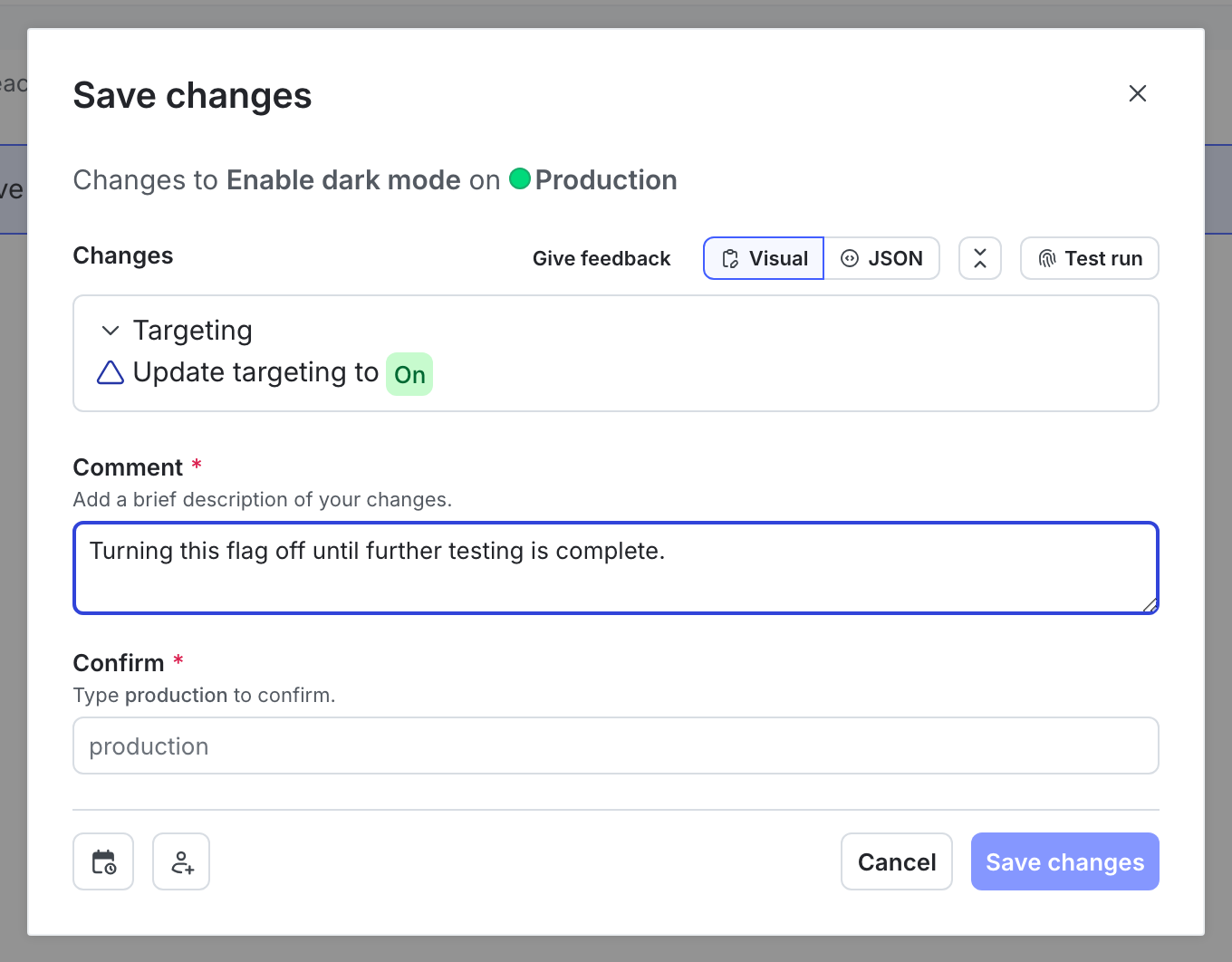
When **Require comments** is enabled, members must leave a comment to explain their changes when they make changes from the **Flags** list or the **Segments** list in the LaunchDarkly user interface (UI). Comments are not required for changes made with the LaunchDarkly API.
When you require comments in an environment, members must leave a comment when saving any changes to a flag:
## Require comments
To require comments in a new environment:
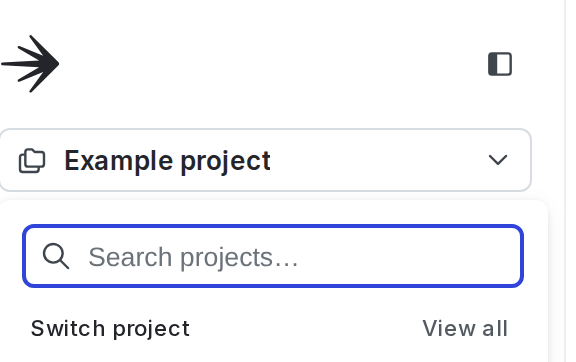
1. Click the project dropdown. The project menu appears:
2. Select **Project settings**.
3. Select **Environments**. The **Environments** list appears.
4. Click **Add environment**. The "Create an environment" panel appears.
5. Give your environment a human-readable **Name**.
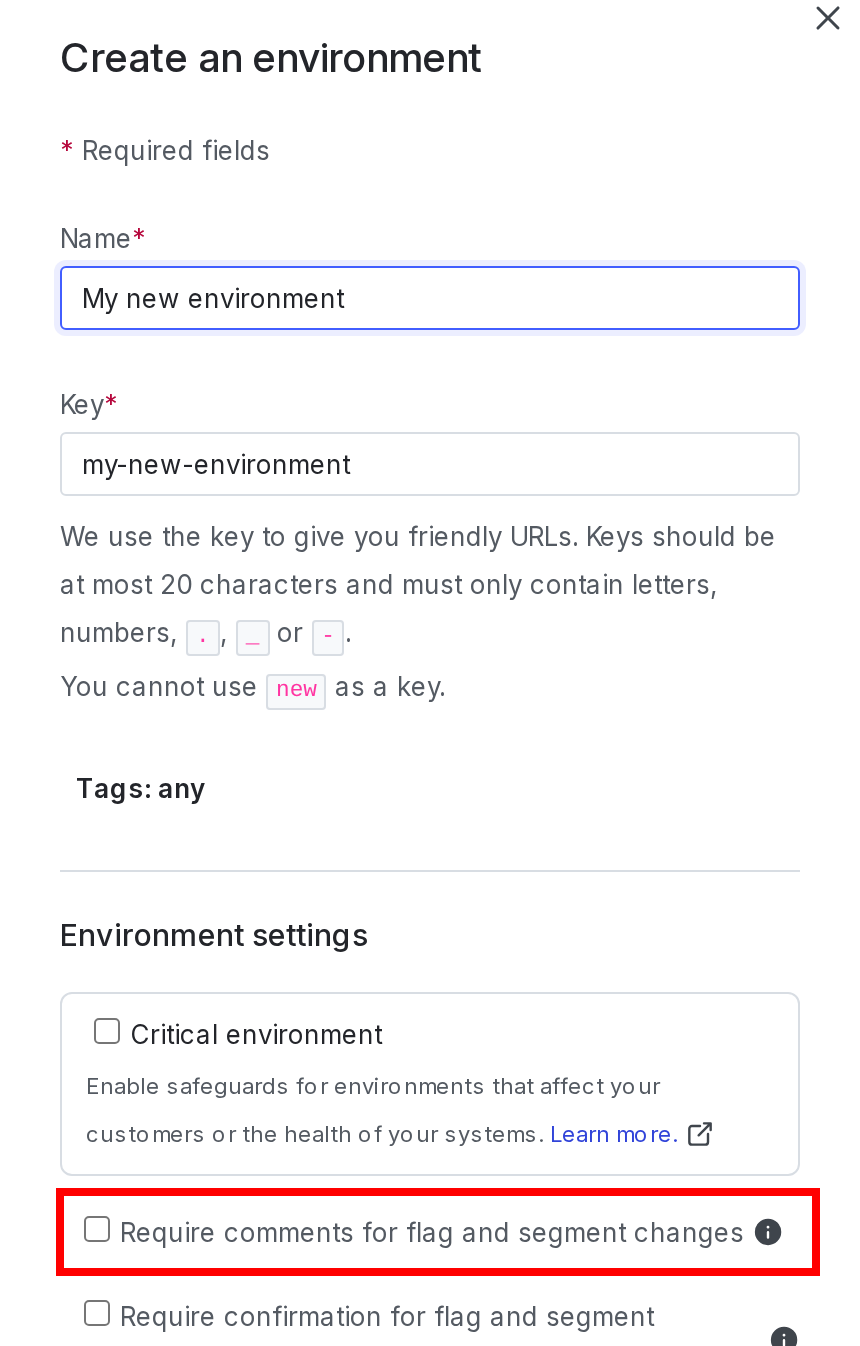
6. Select the **Require comments for flag and segment changes** checkbox:
7. Click **Create environment**.
To learn more, read [Create environments](/home/account/environment/create) and [Environment settings](/home/account/environment/settings).
To require comments in an existing environment:
1. Click the project dropdown. The project menu appears:

2. Select **Project settings**.
3. Select **Environments**. The **Environments** list appears.
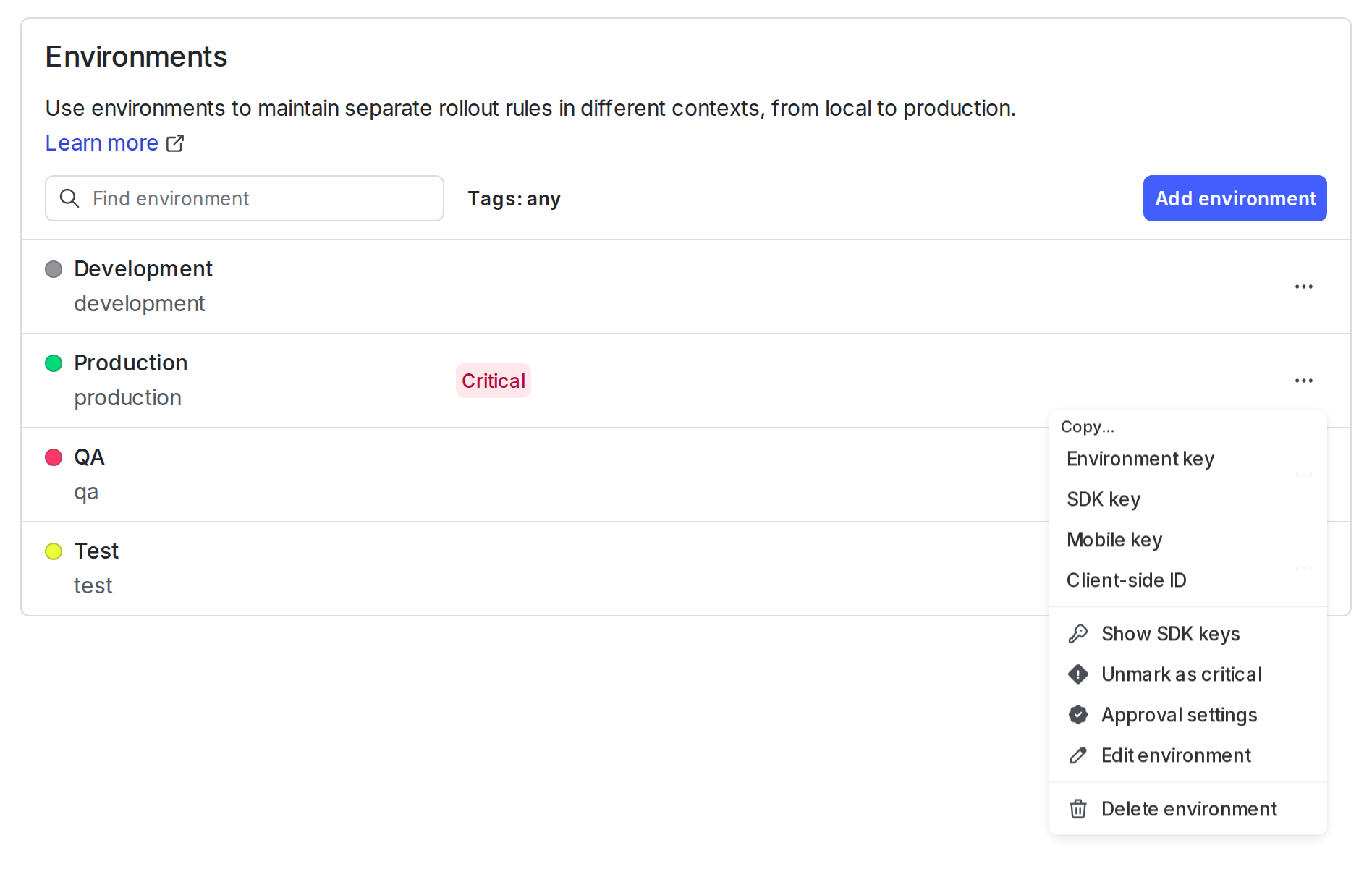
4. Next to the environment you want to edit, click the **overflow menu** and choose **Edit environment**. The **Edit environment** panel appears.
5. Select the **Require comments for flag and segment changes** checkbox.
6. Click **Save environment**.
Comments on changes are now required for your environment.