> ## Documentation Index
> Fetch the complete documentation index at: https://launchdarkly-preview.mintlify.site/llms.txt
> Use this file to discover all available pages before exploring further.
# Deleting approval requests
> This topic explains how to delete approval requests.
> For the complete documentation index, see [llms.txt](/llms.txt). For the full documentation snapshot, see [llms-full.txt](/llms-full.txt).
## Overview
This topic explains how to delete approval requests.
## Delete approval requests
You may delete your request for changes at any point before the changes are applied. You can do this in several ways:
* from the **Approvals** dashboard
* from the approval request
* for approval requests for flag or AI Config changes, from the flag or AI Config's "Pending changes" panel
You can also use the REST API:
[Delete approval request](/api-reference/approvals/delete-approval-request)
## Delete approval requests from the Approvals dashboard
To delete an approval request from the Approvals dashboard:
1. Click **Approvals** in the left sidenav. The **Approvals** dashboard opens.
2. Find the request you wish to delete and click the **overflow menu**.
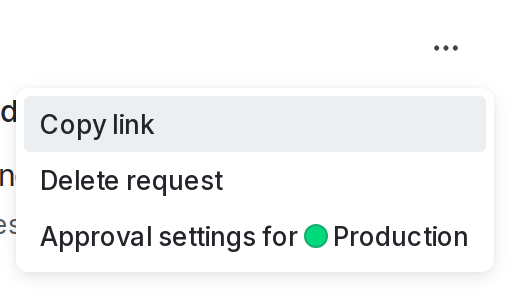
3. Choose "Delete request." A confirmation dialog appears.
4. Click **Delete**. The request is deleted.
## Delete an approval request from the "Pending changes" panel
To delete approval requests from a flag or AI Config's "Pending changes" panel:
1. Navigate to the flag or AI Config and click the "Pending changes" section in the right sidebar, or the **checkmark** pending changes icon. The "Pending changes" panel appears.
2. Find the change you wish to delete and click the **overflow menu**. Additional options appear:
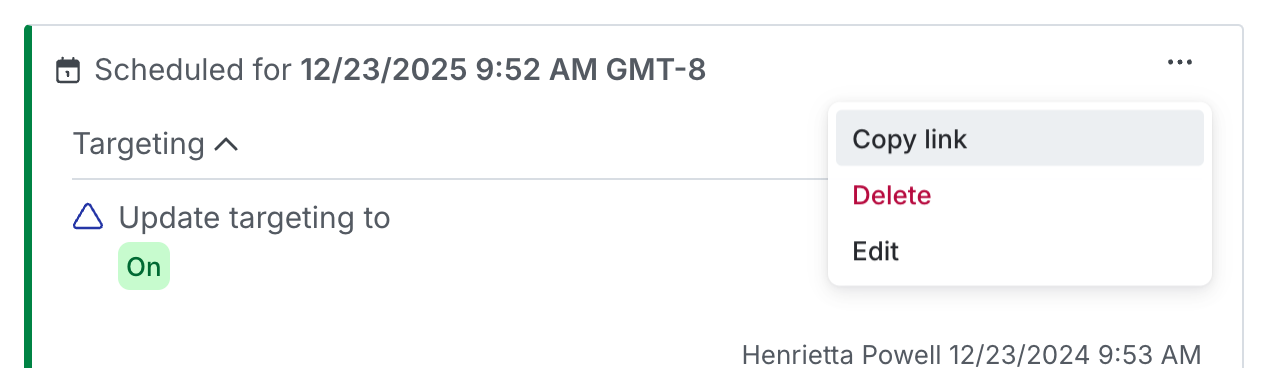
3. Choose **Delete**. A confirmation dialog appears.
4. Click **Delete**. The request is deleted.
## Delete approval requests from the request details screen
To delete an approval request from the request details screen:
1. Navigate to the request details screen from the **Approvals** dashboard, flag, AI Config, segment, or approval notification.
2. Click the **three-dot** overflow menu and choose "Delete request." A confirmation dialog appears.

3. Click **Delete request**. The request is deleted.
## Delete an approval request from the "Pending changes" panel
This procedure only applies to approval requests for flag and AI Config changes.
To delete approval requests from a flag or AI Config's "Pending changes" panel:
1. Navigate to the flag or AI Config and click the "Pending changes" section in the right sidebar, or the **checkmark** pending changes icon. The "Pending changes" panel appears.
2. Find the change you wish to delete and click the **overflow menu**. Additional options appear:

3. Choose **Delete**. A confirmation dialog appears.
4. Click **Delete**. The request is deleted.