> ## Documentation Index
> Fetch the complete documentation index at: https://launchdarkly-preview.mintlify.site/llms.txt
> Use this file to discover all available pages before exploring further.
# Requesting approvals
> This topic explains how to create approval requests.
> For the complete documentation index, see [llms.txt](/llms.txt). For the full documentation snapshot, see [llms-full.txt](/llms-full.txt).
## Overview
This topic explains how to create approval requests.
## Create approval requests
You can request approval on changes to a flag or AI Config's targeting or variations, or on a segment's targeting, from any member or team within your LaunchDarkly organization. You can do this any time after you create the flag, AI Config, or segment. Members that do not have permission to approve requests can still view the request.
To request an approval:
1. Make a change to any flag, AI Config, or segment.
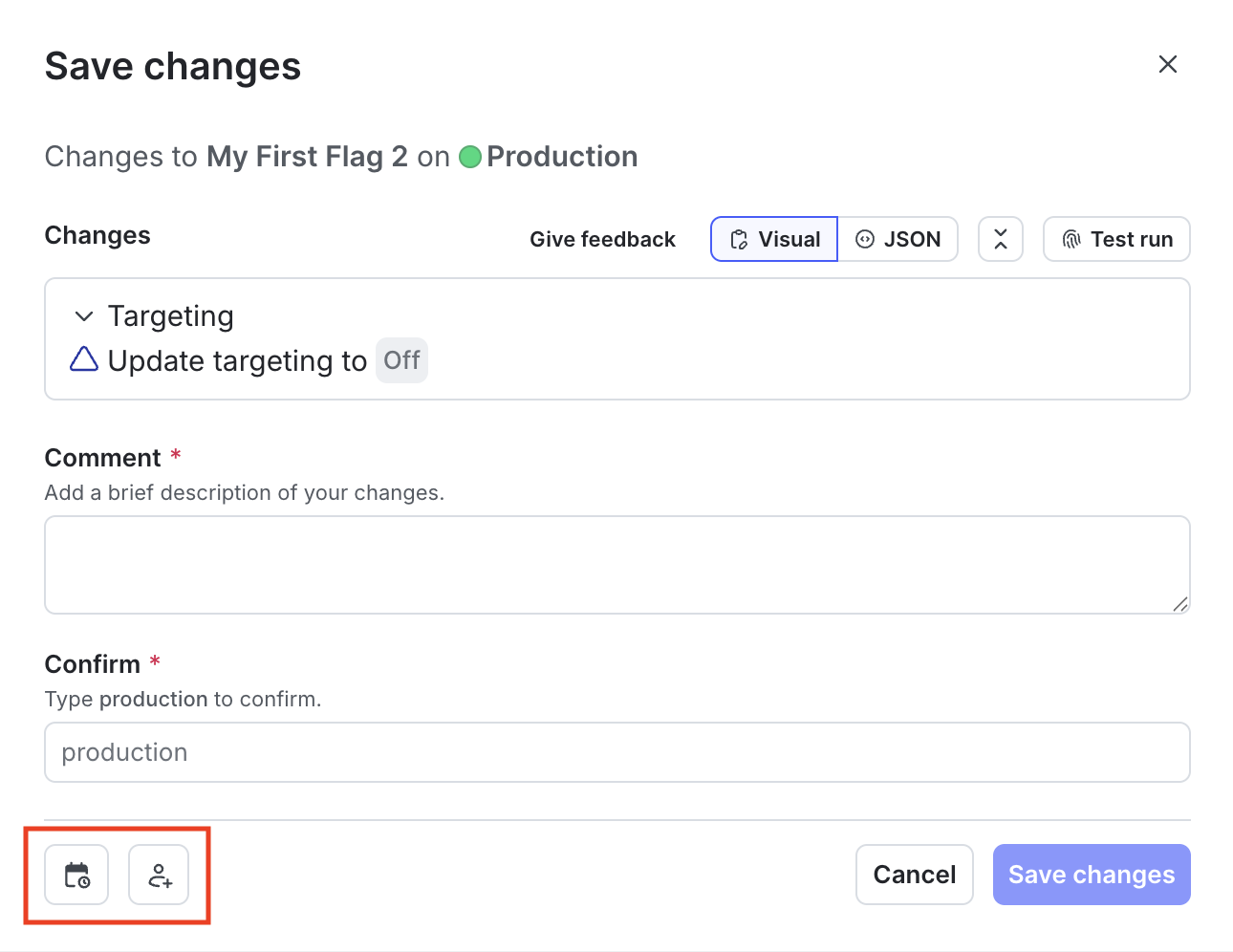
2. Click **Review and save**. The "Save changes" dialog appears.
3. Review the changes displayed in the dialog.
4. If the **Reviewer(s)** menu is not visible, select the **person** icon.
5. Choose one or more reviewers from the **Reviewer(s)** menu.
* Members and teams with permission to approve or decline approval requests appear in the top section of the menu.
* Members and teams that can only view approval requests appear in the bottom section of the menu. If you add a member or team from this list, they will be notified of the approval request, but cannot approve it.
6. Enter a **Comment** to add details that help your reviewers understand the changes you made.
* If your organization uses a third-party workflow management system for approvals, there may be additional fields that you are required to fill out here. To learn more, read [Configuring approvals for an environment](/home/releases/approval-config).
If your environment requires approvals, **Review and request approval** is the default option. To learn more, read [Configuring approvals for an environment](/home/releases/approval-config).
7. Click **Request approval**.
Reviewers receive an email, an in-app inbox notification, and, if they use the LaunchDarkly Slack app, a Slack notification asking them to approve your changes.
If someone requests your approval on a flag change and you use the LaunchDarkly Slack or Microsoft Teams app, you will receive a Slack or Teams notification. AI Config and segment approvals are also sent through Slack, but are not sent through Microsoft Teams.
To learn more, read [Reviewing approval requests](/home/releases/approval-reviews).
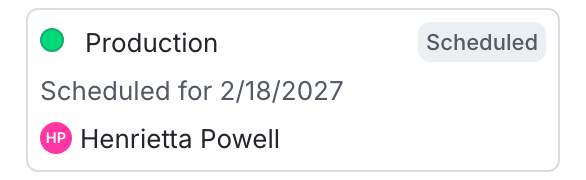
The "Pending changes" section in the flag, AI Config, or segment's right sidebar indicates that there are pending changes waiting for review. A flag or AI Config's **Targeting** tab also updates with a number next to the **checkmark** pending changes icon.
You can request approvals for changes to flag and AI Config targeting or variations only, and to segment targeting only. You cannot request approval on other changes, such as updates to a flag's settings.
You can also use the REST API: [Create approval request for a flag](/api-reference/approvals/create-approval-request-for-a-flag)
## Required approvals
Enterprise customers can require approval requests for specific environments.
If your environment requires approvals, **Review and request approval** is the default option when you make a flag, AI Config, or segment change. If a team member has the `bypassRequiredApproval` custom role action, they are not required to request approval. Instead, they have the option to **Save changes**. The `bypassRequiredApproval` custom role action only applies to flag approvals. You cannot bypass required approvals for AI Configs or segments.
When you copy flag settings between environments, if the environment you're copying changes to requires approval, then **Review and request approval** is the default option. To learn more, read [Compare and copy flag settings between two environments](/home/flags/compare-copy#compare-and-copy-flag-settings-between-two-environments) and [Configuring approvals for an environment](/home/releases/approval-config).
You can also use the REST API: [Create approval request to copy flag configurations across environments](/api-reference/approvals/create-approval-request-to-copy-flag-configurations-across-environments)
To learn how to delete approval requests, read [Deleting approval requests](/home/releases/approvals-delete).