> ## Documentation Index
> Fetch the complete documentation index at: https://launchdarkly-preview.mintlify.site/llms.txt
> Use this file to discover all available pages before exploring further.
# Set up React Native SDK
> Install and initialize the LaunchDarkly React Native SDK
> For the complete documentation index, see [llms.txt](/llms.txt). For the full documentation snapshot, see [llms-full.txt](/llms-full.txt).
### Install the package
```shell title={"yarn"} for={"yarn"} theme={null}
yarn add @launchdarkly/react-native-client-sdk
```
```shell title={"npm"} for={"npm"} theme={null}
npm i @launchdarkly/react-native-client-sdk
```
```shell title={"pnpm"} for={"pnpm"} theme={null}
pnpm i @launchdarkly/react-native-client-sdk
```
LaunchDarkly's React Native SDK v10 uses [@react-native-async-storage/async-storage](https://github.com/react-native-async-storage/async-storage) for bootstrapping. If you are not using Expo, you must explicitly add it as a dependency.
```shell title={"yarn"} for={"yarn"} theme={null}
yarn add @react-native-async-storage/async-storage
```
```shell title={"npm"} for={"npm"} theme={null}
npm i @react-native-async-storage/async-storage
```
```shell title={"pnpm"} for={"pnpm"} theme={null}
pnpm i @react-native-async-storage/async-storage
```
### Initialize the SDK
```tsx title={"React Native SDK initialization"} theme={null}
import {
AutoEnvAttributes,
LDProvider,
ReactNativeLDClient,
} from '@launchdarkly/react-native-client-sdk';
const ldClient = new ReactNativeLDClient('YOUR_MOBILE_KEY', AutoEnvAttributes.Enabled, {
debug: true,
applicationInfo: {
id: 'ld-rn-test-app',
version: '0.0.1',
},
});
// A "context" is a data object representing users, devices, organizations, and other entities.
const context = { kind: 'user', key: 'EXAMPLE_CONTEXT_KEY' };
const App = () => {
useEffect(() => {
ldClient.identify(context);
}, []);
return (
);
};
export default App;
```
You can find your server-side SDK key, client-side ID, and mobile key in the "Resources" section of the help menu. Click the **help icon** at the bottom left corner of the LaunchDarkly UI, then choose **SDK keys**:
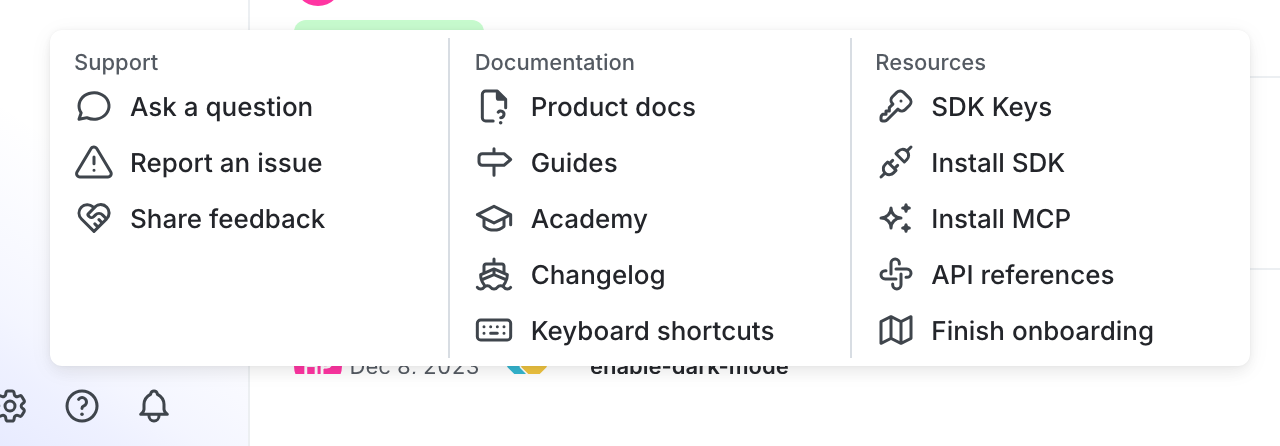
To learn more, read [Initialize the client and identify a context](/sdk/client-side/react/react-native#initialize-the-client-and-identify-a-context) in the React Native SDK reference guide.