> ## Documentation Index
> Fetch the complete documentation index at: https://launchdarkly-preview.mintlify.site/llms.txt
> Use this file to discover all available pages before exploring further.
# Creating flag variations
> This topic explains how to create and edit your feature flag's variations and outlines the different types of flag variations.
> For the complete documentation index, see [llms.txt](/llms.txt). For the full documentation snapshot, see [llms-full.txt](/llms-full.txt).
## Overview
This topic explains how to create and edit your feature flag's variations and outlines the different types of flag variations.
Flag variations are the same across all environments in a project. Flag targeting is environment-specific. For example, if you add a new flag variation, it is immediately available in all environments in your project. If you change the default targeting rule to serve a different variation, the targeting change only applies to the current environment. To learn more, read [Configure the same flag in different environments](/home/flags/new#configure-the-same-flag-in-different-environments).
Feature flag variations determine what a context or user receives when they encounter a feature flag.
}
iconPosition="left"
>
Try it in your SDK: [Evaluating flags](/sdk/features/evaluating)
## Flag variations
LaunchDarkly supports boolean and multivariate flags. From the flag's **Variations** tab, you can add, edit, or delete variations of existing flags:
* **Boolean** flags have two variations: `true` or `false`.
* **Multivariate** flags can have more than two variations. The allowed variations depend on the type of flag. Multivariate flags can have string, number, or JSON variations. To learn more, read [Multivariate flags](#multivariate-flags).
After a feature flag has been created, you cannot change the type of its variations. For example, you can't edit a feature flag that returns numbers to make it return strings instead. To learn more about creating flags, read [Creating new flags](/home/flags/new).
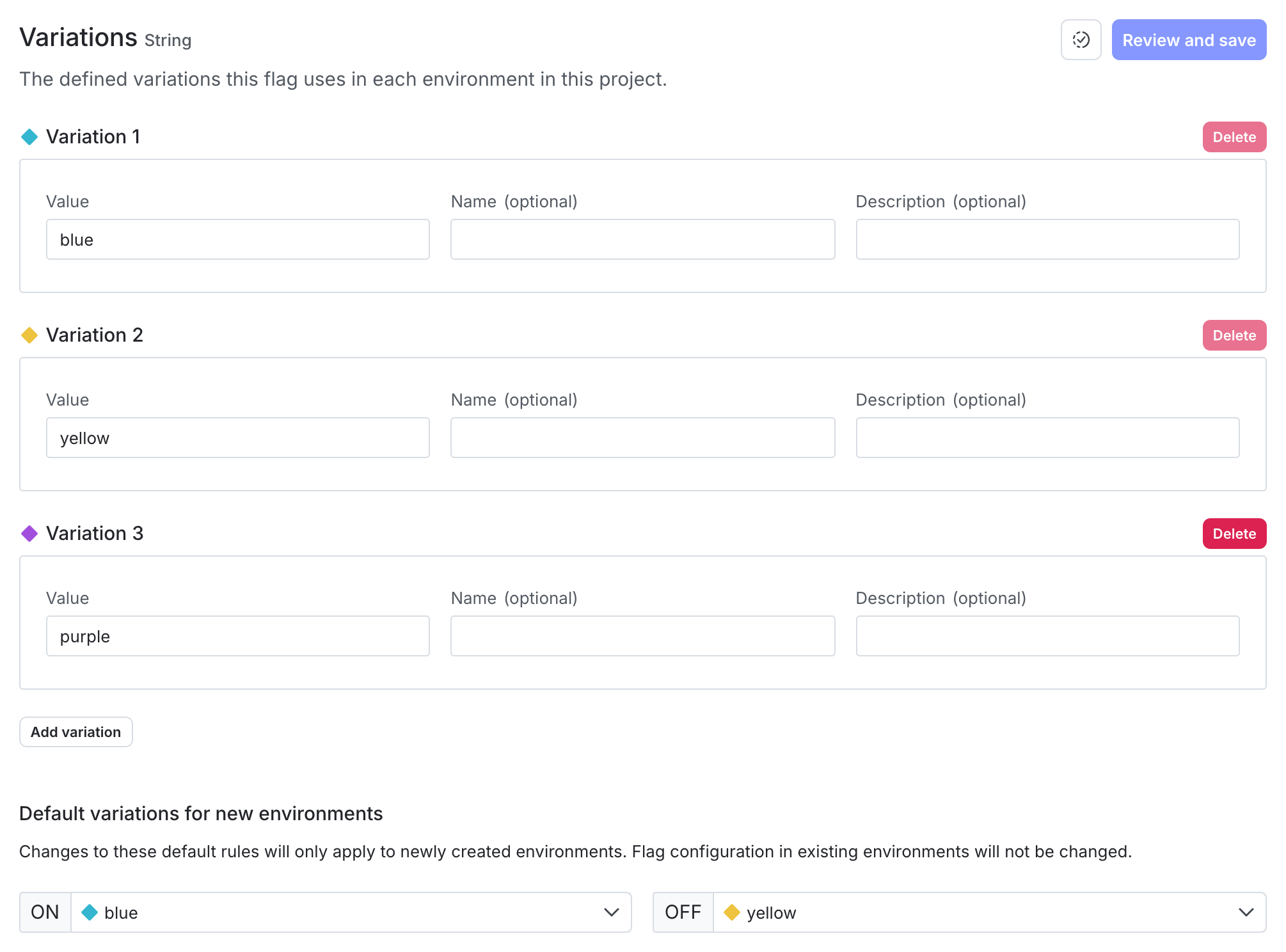
Here is the **Variations** tab of a multivariate flag:
## Edit flag variations
When you add, edit, or delete a feature flag's variations, the change impacts all environments within the project.
To edit a flag's variation values:
1. Navigate to the flag's **Variations** tab.
2. Make any variation changes as needed:
* For boolean flags, you can edit the **Name** and **Description**.
* For number, string, and JSON flags, you can edit the **Value**, **Name**, and **Description**.
3. Click **Review and save**.
Editing the value of a flag variation in use can impact the contexts receiving that variation. If you edit the value of a variation that is actively in use, a warning displays with information about the variation and the environments it's used in:
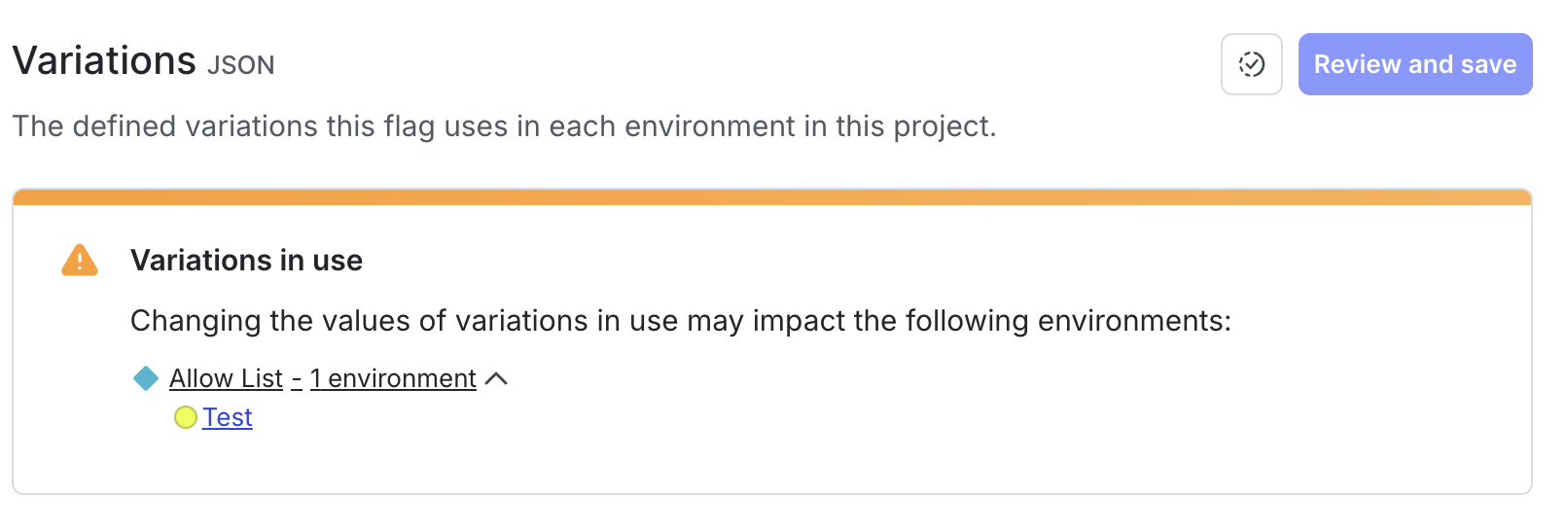
A flag variation is considered in use in a particular environment when:
* you have configured the flag to serve that variation to some or all contexts, and
* the flag is actively being evaluated in that environment, with a [status of "active" or "launched."](/home/flags/flag-status#flag-status-definitions)
When you delete a variation, individual targeting and custom rules that return that variation are also deleted. If a custom rule has a percentage rollout, the rollout for that variation is set to zero. If the default rule returns the deleted variation, it will change to return the default off value instead.
LaunchDarkly allows you to delete variations that are designated to be served when targeting is off. Make sure that your application is able to handle a null value when targeting is off in case this happens.
## Change default flag values
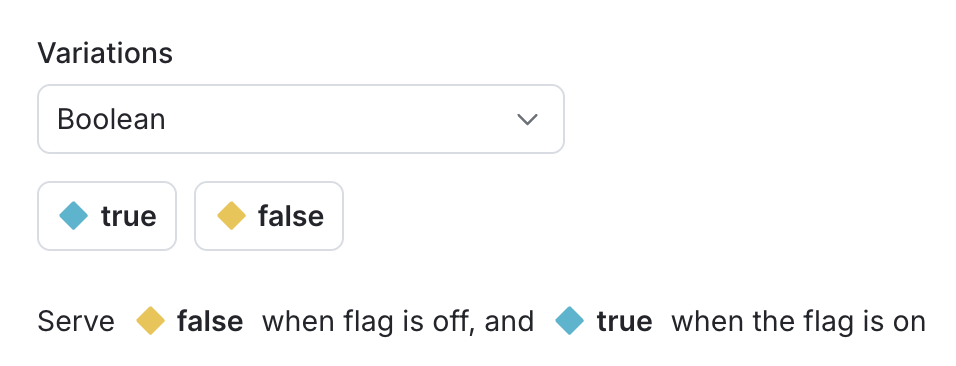
When you create a feature flag, some of its values are designated as defaults. A flag's default values are the values that are served when targeting is on or off, unless you specify otherwise. The default value when a flag is **On** can be either a single variation or a rollout. The default value when a flag is **Off** can be only a single variation.
For example, a boolean flag could have `true` set as its default rule when on and `false` set as its default off variation. A multivariate flag could have `variation 2` set as its default rule when on and `variation 1` set as its default off variation, with `variation 3` and `variation 4` configured to appear when contexts match certain targeting rules.
Default values are designated automatically every time you create a feature flag. You can accept the default values or change them. When you change the default values and save a flag, you create the flag across all environments in your project with these values set as its defaults.
Here is an image of a flag's default values:
To change a flag's default values for new environments:
1. Click the **pencil** icon next to "Variations" in the flag's right sidebar. The **Variations** tab opens.
2. In the "Default variations for new environments" section, update the variations as needed.
3. Click **Review and save**.
If you modify a flag's default values, the updated defaults only apply to new environments. You can not change the default values in environments that already exist.
## Multivariate flags
Multivariate flags let you use one flag to serve more than two variations of a feature simultaneously. There is no limit to the number of variations you can add to a multivariate flag, making it useful for complex use cases and for managing multiple variations of a feature.
Do not edit the values of flag variations that are in use. Flag variations are global across all environments within a project. This means that editing the value of a flag variation can have unexpected consequences in other environments, particularly your production environments.
Instead, create a new variation with the new value, and update your targeting rules to serve the new variation where needed.
Multivariate flag variation types include string, number, and JSON. To learn more, read [Understanding flag types](/sdk/concepts/flag-types#understanding-flag-types) in the SDK documentation.
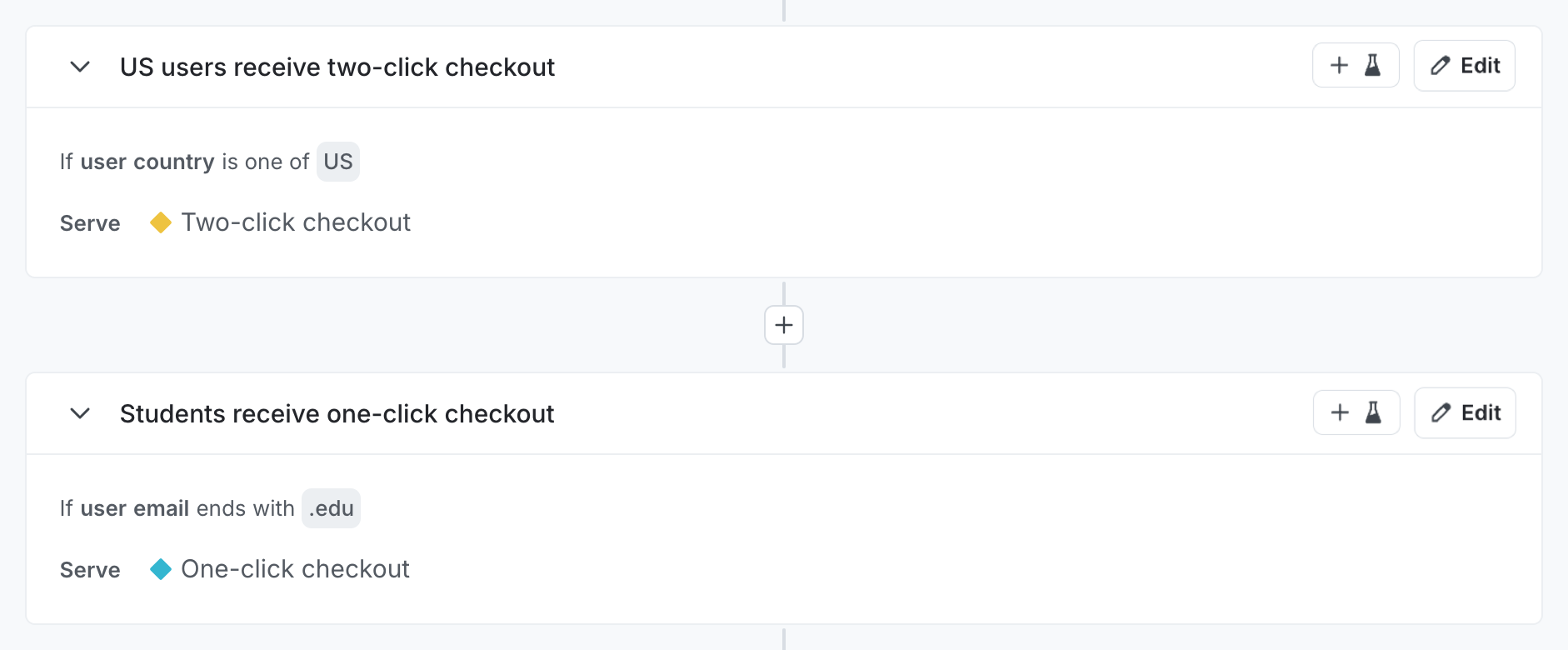
You can use multivariate flags to target multiple sets of contexts and provide different variations to each. In the following example, the first rule serves `Two-click checkout` to all customers whose country is `US`. The second rule serves `One-click checkout` to all customers whose email ends with `.edu`. All customers not targeted in the custom rules are served the default rule.
Here is an image of a flag with custom rules:
To learn more about targeting rules, read [Target with flags](/home/flags/target).
You can also use multivariate flags to perform testing with LaunchDarkly's Experimentation feature. To learn more, read [Creating Experiments](/home/experimentation/create).