> ## Documentation Index
> Fetch the complete documentation index at: https://launchdarkly-preview.mintlify.site/llms.txt
> Use this file to discover all available pages before exploring further.
# Mobile targeting
> This topic explains how to control which mobile apps and devices receive a variation of a feature flag.
> For the complete documentation index, see [llms.txt](/llms.txt). For the full documentation snapshot, see [llms-full.txt](/llms-full.txt).
## Overview
This topic explains how to control which mobile apps and devices receive a variation of a feature flag.
## Target mobile apps and devices
If you are using a mobile SDK that supports environment attributes, you can target your mobile applications based on automatically collected details about your application, application version, and device. You can also target mobile applications based on whether the application version is supported or unsupported. To learn more about configuring your mobile SDKs to enable this targeting, read [Automatic environment attributes](/sdk/features/environment-attributes).
You can only create a "Mobile" targeting rule, and target mobile apps and devices based on automatically collected mobile environment attributes, if you have completed the following:
* your feature flag has its "Available on mobile SDKs" toggle set to **On**. To learn more, read [Creating new flags](/home/flags/new). LaunchDarkly accounts created after October 21, 2025 have this box checked by default.
* you have already started to collect mobile environment attributes in the `ld_application` and `ld_device` context kinds. LaunchDarkly must receive these context kinds before it enables the option to create a mobile targeting rule.
If you are using other mobile SDKs, you can target your mobile applications using [custom targeting rules](/home/flags/custom-rules). With custom targeting rules, you can target your mobile applications based on any attributes that you have manually added to your contexts.
To target mobile apps and devices:
1. Navigate to the **Targeting** tab for the flag.
2. If the flag is off and the rules are hidden, click **View targeting rules**.
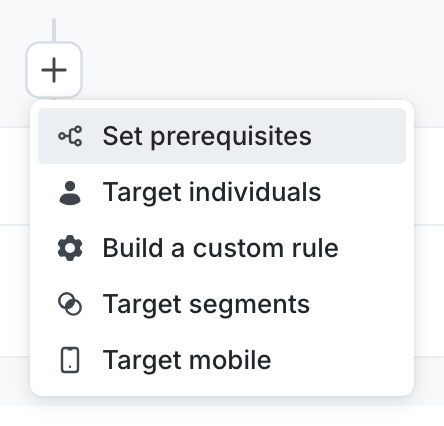
3. Click the **+** button between existing rules, and select "Target mobile".
4. (Optional) Enter a name for the rule.
5. In the **Attribute** menu, select the application or device attribute that you want to target on. By default, mobile targeting rules include clauses for the application version support status and for device information.
* For a complete list of attributes, read [About the automatically added environment attributes](/sdk/features/environment-attributes#about-the-automatically-added-environment-attributes).
* The `os` attribute includes properties for `family`, `name`, and `version`. To create targeting rules for these, use `/` as a delimiter to refer to specific fields. For example, you can create a targeting rule based on `/os/family`.
6. In the **Operator** menu, select the operator for your clause.
7. In the **Application ID** or **Values** menu, enter the values to check against.
8. (Optional) Click **+** to add additional clauses to your targeting rule, or click **-** to remove existing clauses from your targeting rule.
9. From the **Select...** menu, choose a rollout option:
* a single variation to serve
* a manual [percentage rollout](/home/releases/percentage-rollouts)
* a [progressive rollout](/home/releases/progressive-rollouts)
* a [guarded rollout](/home/releases/guarded-rollouts)
* an [experiment](/home/experimentation)
10. Click **Review and save**. The "Save changes" dialog appears.
11. Review your targeting changes, [add comments](/home/releases/comments), or [request approval](/home/releases/approvals) as needed.
12. (Optional) Click **Test run** to preview the percentage of contexts that will receive each flag variation.
13. Click **Save changes**.Here is an example of a targeting rule for mobile apps:
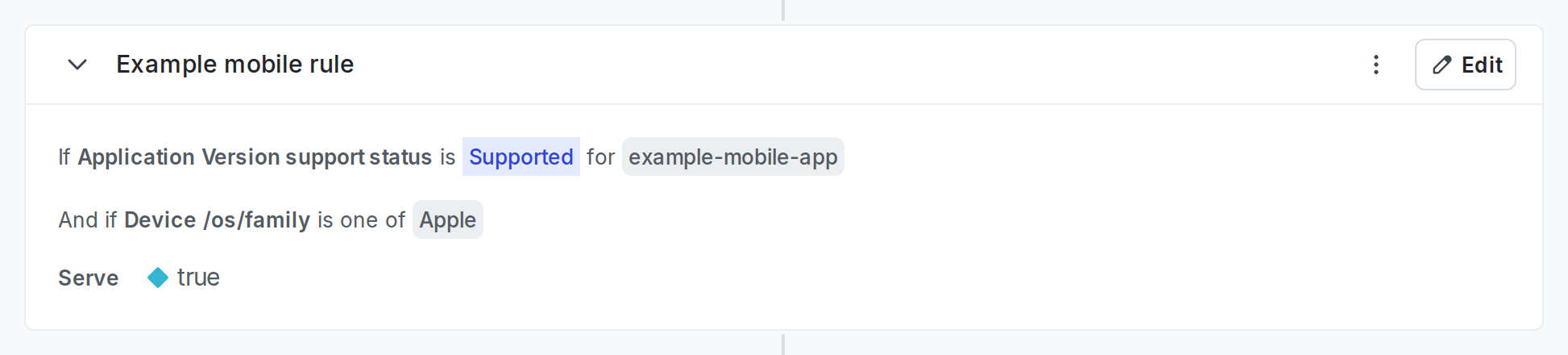
To reference this rule when working with other members of your organization, click the **three-dot** overflow menu and choose **Copy link to rule**.