> ## Documentation Index
> Fetch the complete documentation index at: https://launchdarkly-preview.mintlify.site/llms.txt
> Use this file to discover all available pages before exploring further.
# Flag links
> This topic explains how to create and use flag links to view external mentions of flags and relevant materials from other tools and services.
> For the complete documentation index, see [llms.txt](/llms.txt). For the full documentation snapshot, see [llms-full.txt](/llms-full.txt).
## Overview
This topic explains how to create and use flag links to view external mentions of flags from other tools and services. Links to external conversations and references to your flags allow you to collaborate more easily and quickly review relevant flag information.
You can create flag links automatically using Slack, Jira, and Trello integrations. You can also create them manually using a URL to any system, tool, or site you wish.
There are four types of flag links:
* [URL flag links](#create-url-flag-links)
* [Slack flag links](#create-slack-flag-links)
* [Jira flag links](#create-jira-flag-links)
* [Trello flag links](#create-trello-flag-links)
* [GitHub flag links](#create-github-flag-links)
## Create URL flag links
You can create URL flag links by associating an external URL with a feature flag.
To create a URL flag link:
1. From the **Flags** list, click on the name of the flag you want to follow. The flag's **Targeting** tab opens.
2. Click the **+** icon in the "Links" section of the right sidebar. The "Add link to flag" dialog appears.
3. Enter the URL for the external resource you're linking the flag to.
4. (Optional) Enter a title and description for the link.
5. Click **Save**. The linked resource appears in the "links" section.
You can also use the REST API: [Flag links](/api-reference/flag-links-beta/list-flag-links)
## Create Slack flag links
The LaunchDarkly Slack app integration is required to use Slack flag links. To learn how to set up the integration, read [Slack](/integrations/slack).
The [LaunchDarkly Slack app](https://slack.com/apps/AKEEF9DTM-launchdarkly) automatically creates flag links when a flag's URL is mentioned in a public Slack channel. You can access the Slack conversation in LaunchDarkly on the flag's right sidebar.
Additionally, you can manually associate a Slack conversation in a public channel with a flag using a flag link message shortcut.
To link a flag to a conversation in Slack:
1. In Slack, locate the conversation you want to reference.
2. Click **more actions**:
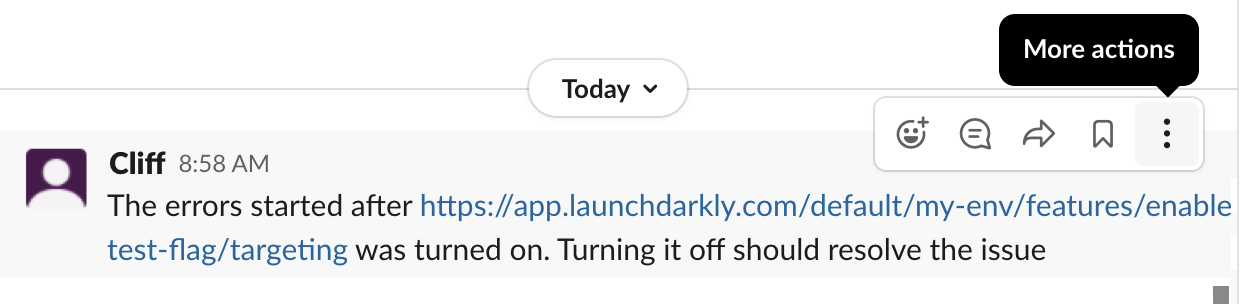
2. Click **More message shortcuts...** The "Use a shortcut" screen opens.
3. Enter "Create flag link" into the search field.
4. Click **Create flag link**. The "Create flag link" screen opens.
5. Select the project name and flag you would like to associate with the conversation:
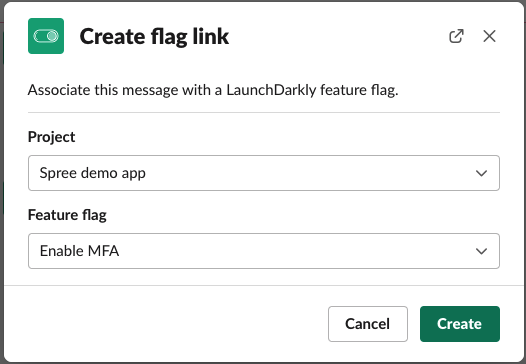
6. Click **Create**.
You can now view the Slack conversation on the flag's right sidebar.
## Create Jira flag links
The LaunchDarkly Jira integration is required to use Jira issue flag links. To learn how to set up the integration, read [Jira Cloud](/integrations/jira).
When you connect a feature flag to a Jira issue, LaunchDarkly automatically creates a flag link. To learn more, read [Connect an existing feature flag to a Jira issue from LaunchDarkly](/integrations/jira#connect-an-existing-feature-flag-to-a-jira-issue-from-launchdarkly).
After you connect a feature flag to a Jira issue, you can view the issue on the flag's right sidebar.
## Create Trello flag links
The LaunchDarkly Trello integration is required to use Trello flag links. To learn how to set up the integration, read [Trello](/integrations/trello).
When you attach a feature flag to a Trello card, LaunchDarkly automatically creates a flag link. To learn more, read [Add feature flags to Trello cards](/integrations/trello#add-feature-flags-to-trello-cards).
After you connect a feature flag to a Trello card, you can view the Trello card on the flag's right sidebar.
## Create Git
Hub flag links
The LaunchDarkly Find Code References in Pull Request integration is required to use GitHub flag links. To learn how to set up the integration, read [Find Code References in Pull Request](/integrations/github-actions/find-code-references).
After you configure the LaunchDarkly Code References in Pull Request GitHub Action, LaunchDarkly automatically creates a flag link when you modify a flag in a pull request. To learn more, read [Find Code References in Pull Request](/integrations/github-actions/find-code-references).
When LaunchDarkly detects a feature flag change in a pull request, you can navigate to the flag's right sidebar to access the link.
## Delete flag links
To delete a flag link, hover over the link and click the trash can icon that appears.