> ## Documentation Index
> Fetch the complete documentation index at: https://launchdarkly-preview.mintlify.site/llms.txt
> Use this file to discover all available pages before exploring further.
# Flag lifecycle settings
> This topic describes flag lifecycle settings and how to update them. The flag lifecycle settings let you customize the criteria that LaunchDarkly uses to determine when flags are ready to be archived.
> For the complete documentation index, see [llms.txt](/llms.txt). For the full documentation snapshot, see [llms-full.txt](/llms-full.txt).
## Overview
This topic describes flag lifecycle settings and how to update them. Flag lifecycle settings let you customize the criteria that LaunchDarkly uses to determine when flags are ready to be archived. [Archiving flags](/home/flags/archive) is a good practice to help clean up flags you no longer need.
Custom lifecycle settings apply only to critical environments. LaunchDarkly will not evaluate non-critical environments for a flag's archive-readiness.
## Update lifecycle settings
When you update the **Lifecycle settings** for a project, the changes apply to all flags in your project. This means some flags previously considered ready to archive may no longer be ready to archive, and some flags previously considered not yet ready to archive may now be ready. On the [**Flags** list](/home/flags/list), these changes apply immediately.
In [Launch Insights](/home/getting-started/launch-insights), data from before you update the settings reflects your older definition, and data from after you update the settings reflects your newer definition.
To customize flag lifecycle settings:
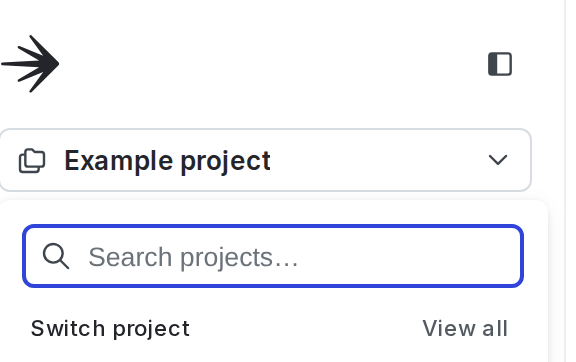
1. Click the project dropdown. The project menu appears:
2. Click **Project settings**.
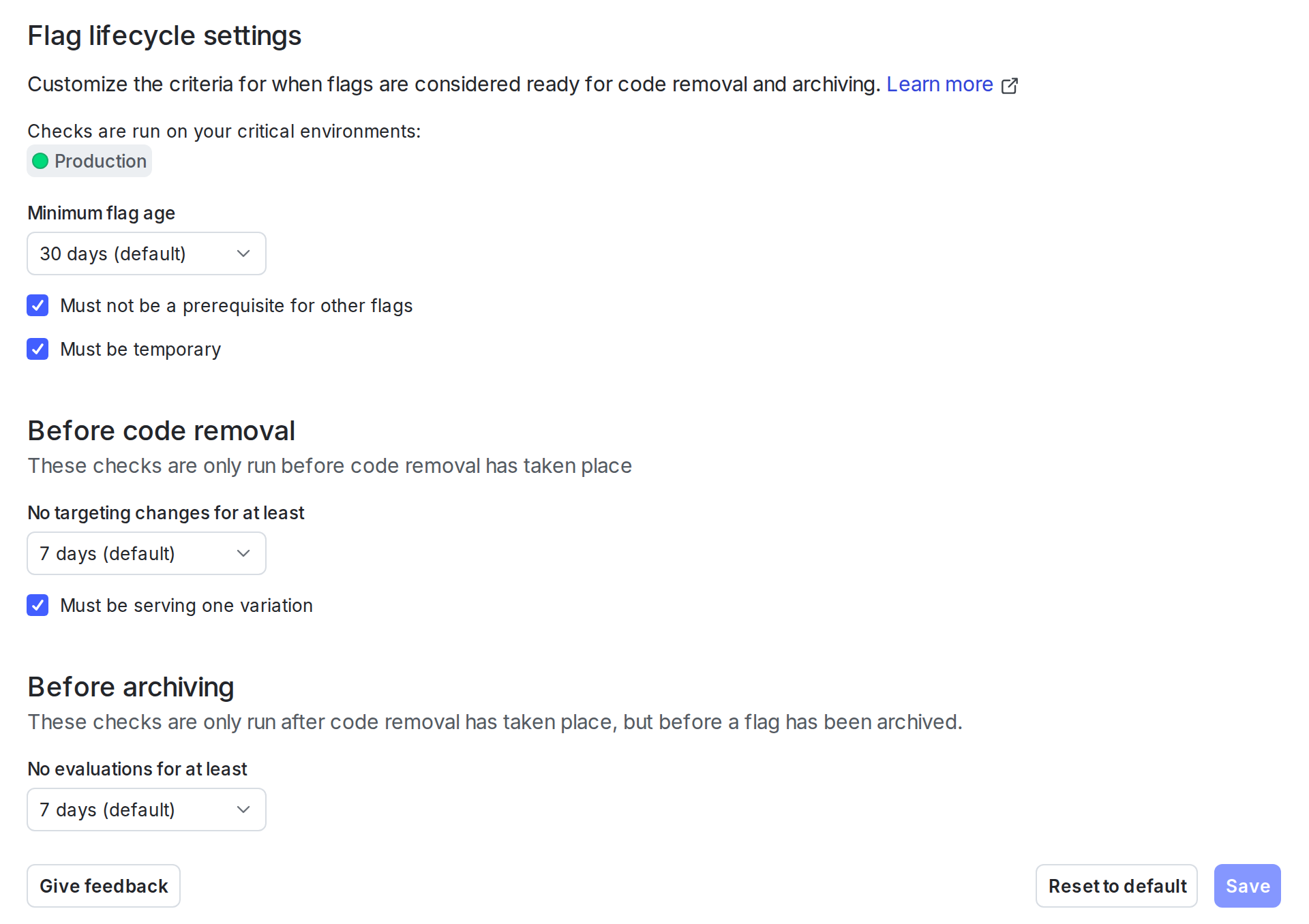
3. Click **Lifecycle settings**. The flag lifecycle settings panel appears:
4. Customize the criteria that LaunchDarkly uses to determine when flags are ready to be archived:
* Select the **Minimum flag age**. We recommend setting this to at least as long as it takes to release most features in your critical environments.
* Select **Before code removal, there should be no targeting changes for at least** to set how long a flag's targeting rules must be unchanged before the flag is ready to archive.
* Select **Before archiving, there should be no evaluations for at least** to set how long a flag should have no evaluations before the flag is ready to archive.
* Select whether a flag may a prerequisite. We recommend checking the **Must not be a prerequisite for other flags** checkbox.
* Select whether flags may serve one or many variations and still be ready archive. We recommend checking the **Must be serving one variation** checkbox.
* Select whether the archival checks apply to all flags or only [temporary](/home/flags/flag-settings) flags. We recommend checking the **Must be temporary** checkbox.
5. Click **Save**.
To reset the flag lifecycle settings, navigate to the flag lifecycle settings panel and select **Reset to default**.