> ## Documentation Index
> Fetch the complete documentation index at: https://launchdarkly-preview.mintlify.site/llms.txt
> Use this file to discover all available pages before exploring further.
# The default rule
> This topic explains how to set the default rule for a flag.
> For the complete documentation index, see [llms.txt](/llms.txt). For the full documentation snapshot, see [llms-full.txt](/llms-full.txt).
## Overview
This topic explains how to set the default rule for a flag. LaunchDarkly defines a final default rule, sometimes called the "fallthrough" rule, for any contexts that don't match any of the previous targeting rules on the flag. The default rule can be a single variation, a [guarded rollout](/home/releases/guarded-rollouts), a [progressive rollout](/home/releases/progressive-rollouts), a [percentage rollout](/home/releases/percentage-rollouts), or an [experiment](/home/experimentation).
Here is an image of a default rule:
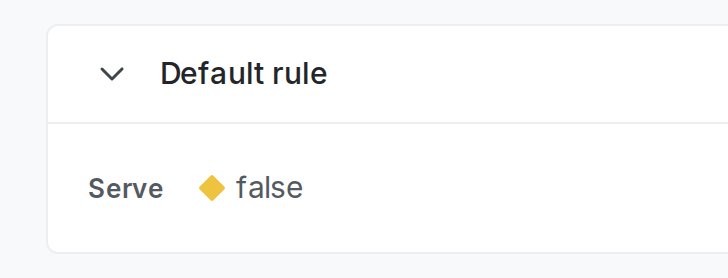
You can set the default rule to a specific variation when you [create a new flag](/home/flags/new). If needed, you can later update the default rule to a different variation or to a rollout.
The default rule is different from the fallback value, which is the value that contexts receive if your application can't connect to LaunchDarkly. To learn more, read [Fallback value](/home/getting-started/vocabulary#fallback-value).
The default rule is also different from the off variation, which is the value LaunchDarkly serves when the flag is off. To learn more, read [The off variation](/home/flags/off-variation).
## Default rules for new flags
Here is how LaunchDarkly sets the default rule for new flags:
* When you create a new boolean flag, the default variation when the flag is on is "true." You can update this to "false" as part of the flag creation process. You can also change this default to "false" for all new flags using [flag templates](/home/flags/templates).
* When you create a new multivariate flag, the default variation when the flag is on is the first variation on the flag. You can update this to any other variation as part of the flag creation process.
You can later update the default rule to a different variation or to a rollout.
## Update the default rule
To update a flag's default rule:
1. In the flags dashboard, scroll or search to find the flag you want.
2. Click the flag's name to open the flag's **Targeting** tab.
3. If the flag is off and the rules are hidden, click **View targeting rules**.
4. In the "Default rule" section, click **Edit** to configure the default rule to serve a specific variation, a rollout, or an experiment.
In this example, all contexts that have not been targeted by any other rules will receive `false`.
To learn how to set a default rule using JSON, read [Default rule or variation](/home/flags/json-targeting#default-rule-or-variation).