> ## Documentation Index
> Fetch the complete documentation index at: https://launchdarkly-preview.mintlify.site/llms.txt
> Use this file to discover all available pages before exploring further.
# Cloning existing flags
> This topic explains how to create new flags by cloning existing flags in LaunchDarkly.
> For the complete documentation index, see [llms.txt](/llms.txt). For the full documentation snapshot, see [llms-full.txt](/llms-full.txt).
## Overview
You can create new flags by cloning existing flags. When you clone a flag, LaunchDarkly makes a new flag and copies the original flag's targeting configuration for all environments, including default values and whether the flag is toggled on or off. You can then modify the clone's configuration if needed.
To clone a flag:
1. Navigate to the **Flags** list and open the flag you wish to clone.
2. Click the **three-dot** overflow menu in the right sidebar.
3. Select **Clone this flag**.
4. The "Clone feature flag" dialog appears:
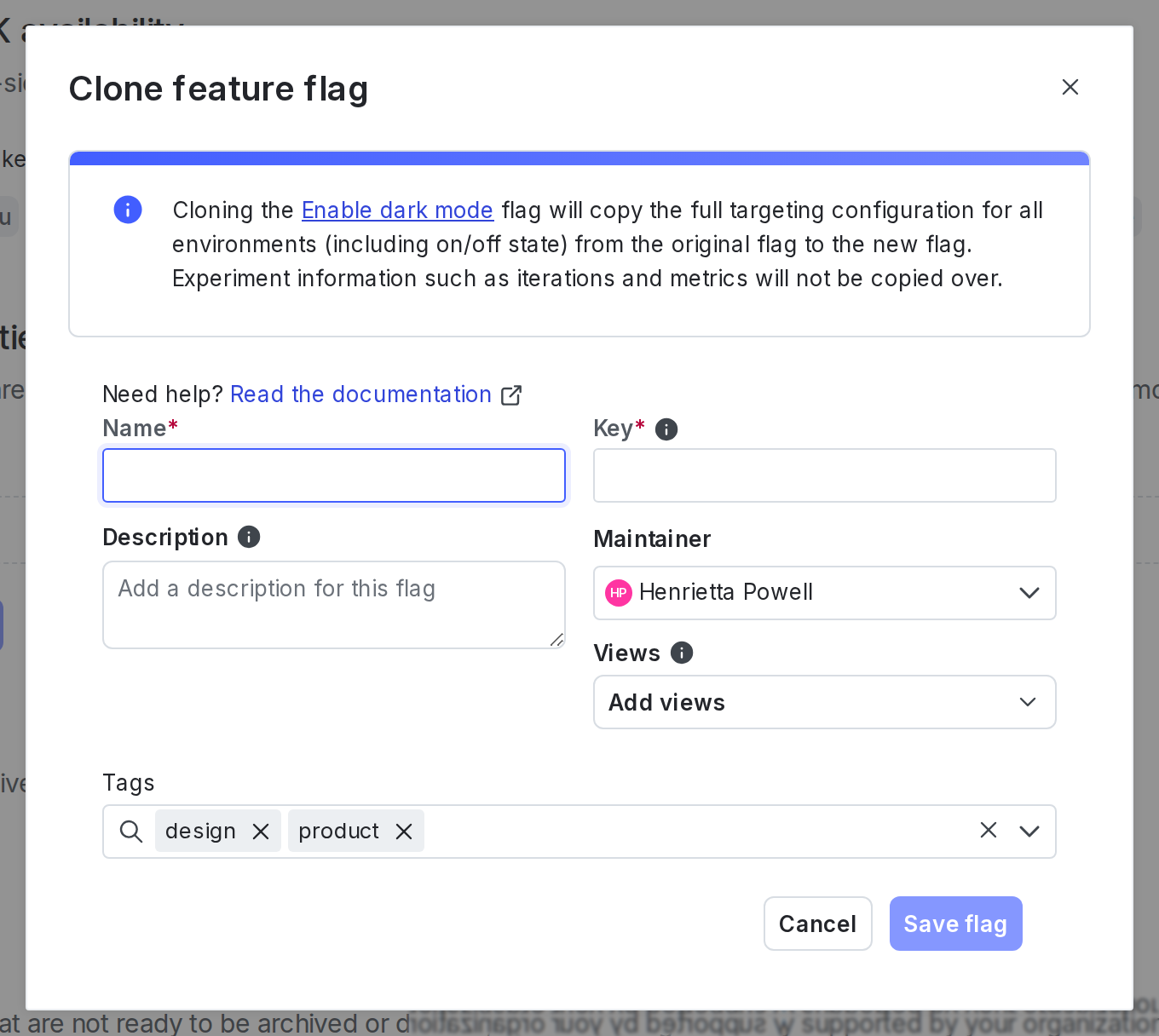
5. Enter a unique, human-readable **Name**.
6. (Optional) Update the unique flag **Key**. You'll use this key to reference the flag in your code. A suggested key auto-populates from the name you enter, but you can customize it if you wish.
7. (Optional) Enter a **Description** of the new flag. A brief, human-readable description helps your account members understand what the flag is for.
8. (Optional) Add the flag to one or more **Views**.
9. (Optional) Click into the **Tags** menu and choose one or more tags for your flag.
Use tags to group related flags so your team can find them more easily.
For most access-control use cases, use views to scope access within a project. To learn more, read [Onboarding to views](/guides/account/views-onboarding).
10. Click **Save flag.** You are taken to the new flag's **Targeting** tab.
The new flag appears in the **Flags** list.
If the flag you are cloning has an active [guarded rollout](/home/releases/guarded-rollouts) or [progressive rollout](/home/releases/progressive-rollouts), the rollout is not cloned.
You can also use the REST API: [Copy feature flag](/api-reference/feature-flags/copy-feature-flag)