> ## Documentation Index
> Fetch the complete documentation index at: https://launchdarkly-preview.mintlify.site/llms.txt
> Use this file to discover all available pages before exploring further.
# Bulk targeting
> This topic explains how to perform edits on groups of contexts, or export all the contexts a flag is targeted to.
> For the complete documentation index, see [llms.txt](/llms.txt). For the full documentation snapshot, see [llms-full.txt](/llms-full.txt).
Bulk targeting is only available to customers on select plans. To learn more, [read about our pricing](https://launchdarkly.com/pricing/). To upgrade your plan, [contact Sales](https://launchdarkly.com/contact-sales/).
## Overview
This topic explains how to perform edits on groups of contexts with the "Bulk edit" option, or export all the contexts a flag is targeted to with the "Export as CSV" option.
The bulk edit option lets you manage all of your individual targets for a single feature flag variation. You can use bulk editing with the "user" [context kind](/home/flags/context-kinds) to make changes in large numbers, such as adding or removing contexts from a flag variation. The export as CSV option lets you export all the context keys for a flag's targeting settings as a spreadsheet.
We recommend using individual targeting only for very small numbers of individual contexts. Individually targeting more than 10,000 contexts per environment may cause performance degradation, because the SDK takes longer to initialize when the targeting rules payload is large.
Instead, we recommend using targeting rules or segments to target large numbers of contexts. To learn how, read [Custom targeting rules](/home/flags/custom-rules) and [Targeting segments](/home/flags/segment-targeting).
## Bulk edit targets
If you have a long list of contexts you want to add, remove, or replace within a individual targeting rule, you can bulk edit these contexts from a flag's **Targeting** tab.
To add, edit, or remove contexts in bulk:
1. Navigate to the **Flags** list and choose the flag you wish to modify. The flag's **Targeting** tab opens.
2. If the flag is off and the rules are hidden, click **View targeting rules**.
3. Click **Edit** in the individual targeting section.
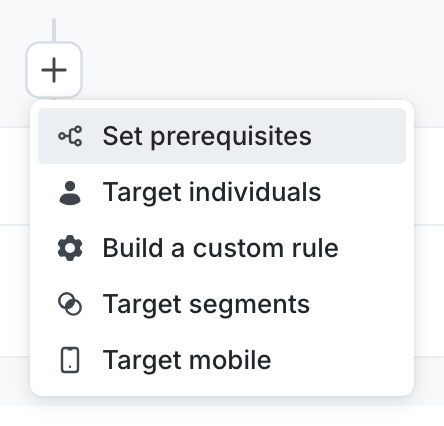
* If the flag does not yet have an individual targeting section, click the **+** button beneath the toggle section and select **Target individuals**.
4. Click the **three-dot** overflow menu:
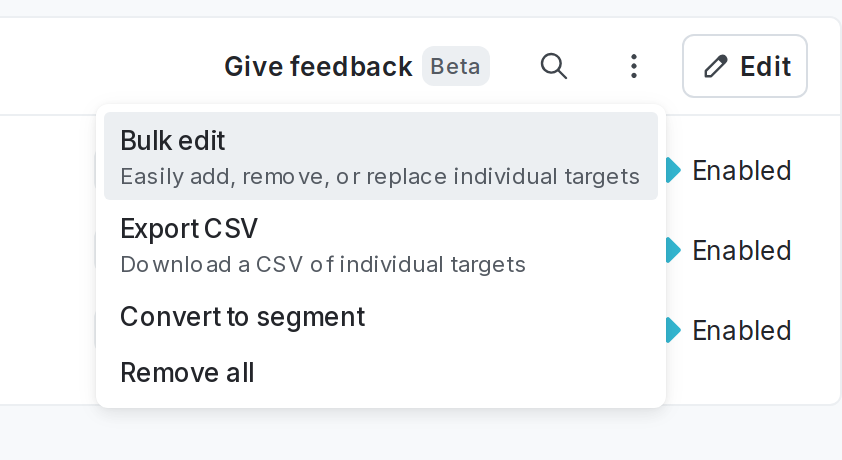
5. Select **Bulk edit**. A "Bulk editing" dialog appears.
6. Choose **Add**, **Remove**, or **Replace** from the menu.
7. Use the menu to do one of the following actions:
* **Add** adds the selected contexts as targets to the variation
* **Remove** removes the selected contexts from the target variation
* **Replace** replaces all currently targeted contexts with the selected contexts
8. Enter a list of context keys in the **these users** field, separated by a comma or new line. LaunchDarkly looks up contexts with a "user" context kind by key and displays them by name in the list on the right. If you want to target a context that has not yet been encountered by LaunchDarkly, you must enter the key.
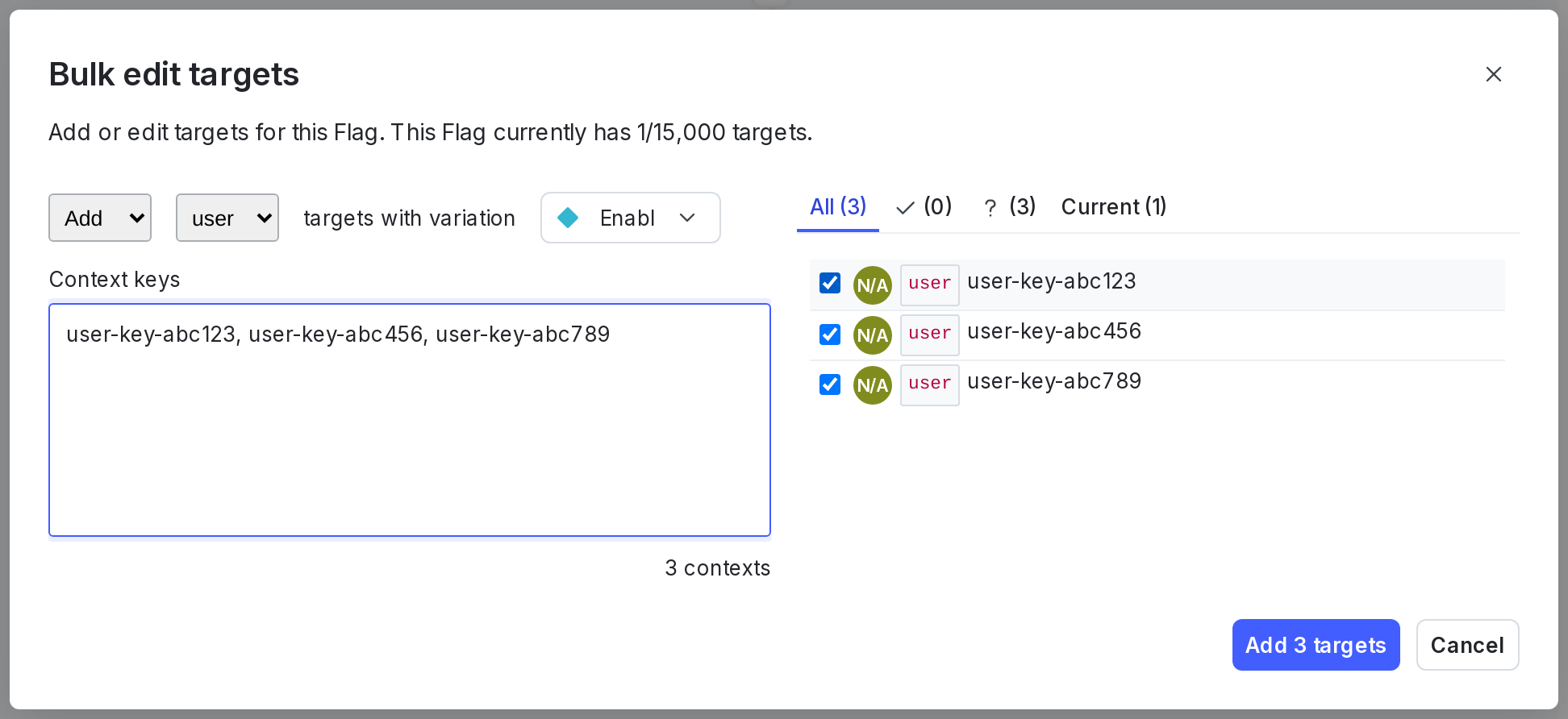
You can update the list on the right before you perform the selected action. The options for updating the list include the following:
* **All** represents all of the contexts that may be impacted by the action, whether they are added or removed. Check the checkbox for the action to apply.
* The **checkmark** represents inputted context keys that currently match contexts in the system. For example, if you enter the key `user-key-123-abc`, and a user context with that key already exists in LaunchDarkly, it will show up by name in this list.
* The **question mark** represents contexts with no matching records in LaunchDarkly. If you are adding contexts and the contexts do not currently exist in LaunchDarkly, they will be added to the targeting list.
* **Current** lists all of the currently targeted contexts for the variation.
9. Click **Add N targets**, **Remove N targets**, or **Replace N targets** to perform the selected action.
If you want to target the same large numbers of user contexts in multiple flags, you can create a segment, set up targeting rules for the segment, and target the segment instead. To learn how, read [Segments](/home/flags/segments).
## Export a list of contexts to CSV
You can download a list of all the contexts a flag variation is targeted to from the flag's **Targeting** tab.
To export a list of contexts to a CSV file:
1. Navigate to the **Flags** list and choose the flag you wish to export contexts for.
2. If the flag is off and the rules are hidden, click **View targeting rules**.
3. Find the individual targeting rule and click **Edit**.
4. Click the **three-dot** overflow menu:

5. Click **Export CSV**. A CSV file including the list of contexts keys a flag variation is targeted to downloads to your machine.