> ## Documentation Index
> Fetch the complete documentation index at: https://launchdarkly-preview.mintlify.site/llms.txt
> Use this file to discover all available pages before exploring further.
# Editing and archiving experiments
> This topic explains how to edit, clone, and archive experiments.
> For the complete documentation index, see [llms.txt](/llms.txt). For the full documentation snapshot, see [llms-full.txt](/llms-full.txt).
## Overview
This topic explains how to edit, clone, and archive experiments.
## Edit experiments
Some edits to an existing experiment trigger a new experiment iteration when you save your changes. When LaunchDarkly starts a new experiment iteration, it will reshuffle traffic into new variations unless you prevent variation reassignment.
Here are the changes you can make to an existing experiment:
* You can make changes to the name of an experiment or add new metrics to an existing experiment at any time. LaunchDarkly will not start a new iteration of the experiment when you make these changes.
* You can make changes to the hypothesis, randomization unit, existing metrics, and audience of a running experiment. However, LaunchDarkly will start a new iteration of the experiment when you save your changes, and may reshuffle traffic in the new iteration.
* If you don't want LaunchDarkly to reshuffle traffic when you edit an experiment, check the **Prevent variation reassignment when traffic increases** checkbox. To learn more, read [Variation reassignment](/home/experimentation/carryover).
* You cannot make changes to the flag used in an existing experiment. If you want to use a different flag, you must create a new experiment.
### Change an experiment name
To change an experiment's name:
1. Navigate to the **Design** tab of your experiment.
2. Click **Edit design**.
3. Edit the **Name** as needed.
4. Click the **checkmark** icon.
Your changes are saved, and you can navigate away from the edit screen.
### Add additional metrics
To add additional metrics to an experiment, without removing any existing metrics:
1. Navigate to the **Results** tab of your experiment.
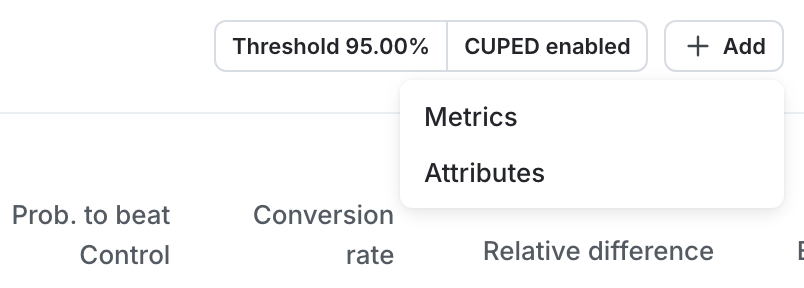
2. Scroll to the results table and click **Add**.
3. Select **Metrics**:
4. Select additional metrics or metric groups.
5. Click **Add metrics**.
If the experiment is running, the new metric will retroactively display results from the start of the experiment's current iteration. If the experiment is not currently running, the metric will begin measuring results when you start a new iteration.
### Change an experiment's hypothesis, randomization unit or existing metrics
To change an experiment's hypothesis or randomization unit, or to remove and replace existing metrics:
1. Navigate to the **Design** tab of your experiment.
2. Click **Edit design**.
3. (Optional) Edit the **Hypothesis** as needed.
4. (Optional) Choose a different randomization unit from the **Randomize by** menu as needed.
5. (Optional) Choose different **Metrics** as needed.
6. Scroll to the top of the page and click **Save**.
* If the experiment was running when you made edits, a "Save experiment design?" dialog appears. Enter a reason for the change and click **Save & start new iteration**.
These changes may affect the experiment's [variation assignments](/home/experimentation/carryover).
### Change an experiment's audience allocation
When you need to edit the audience of a running experiment, use the experiment's **Edit design** button. This ensures the experiment respects your **Prevent variation reassignment when traffic increases** checkbox selection.
If you use the **Stop** button instead, LaunchDarkly will always reshuffle traffic into new variations when you start a new iteration, whether or not this box is checked.
To edit the audience allocation of an experiment:
1. Navigate to the **Design** tab of your experiment.
2. Click **Edit design**.
3. Navigate to the "Audience allocation" section and update the sample size as needed.
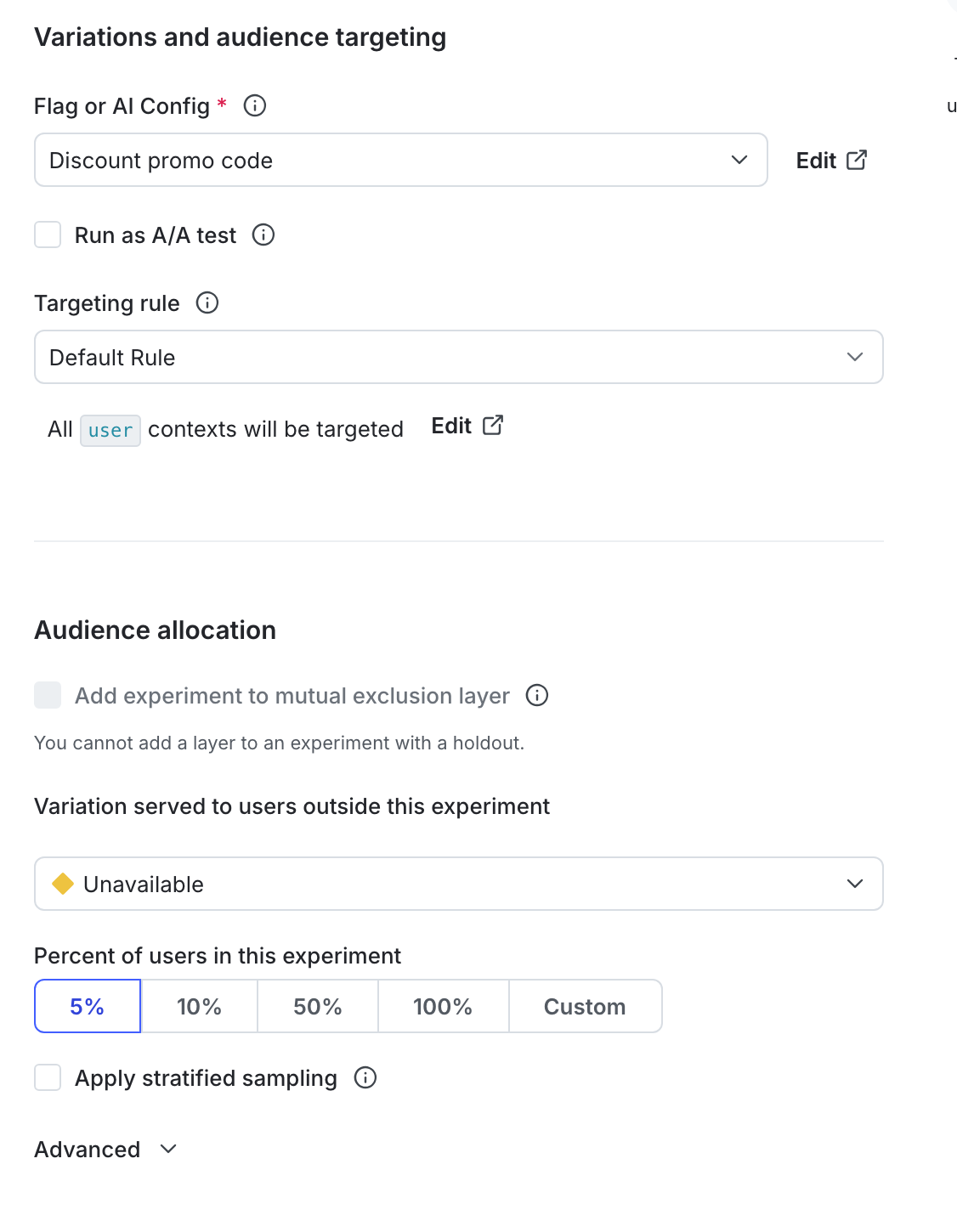
4. Scroll to the top of the page and click **Save & start new iteration**.
5. Enter a **Reason for changes**.
6. Click **Save changes and start new iteration**.
### Change an experiment's flag rule
To change the flag rule an experiment is running on, you must stop the experiment iteration, change the rule, and start a new iteration. This lets you select a flag variation to serve to any contexts that will no longer be included in the experiment.
To change the flag rule:
1. Navigate to the **Design** tab of your experiment.
2. Click **Stop experiment**. The "Stop experiment" dialog appears.
3. Select a winning variation to serve while the experiment is stopped.
4. Enter a **Reason for stopping**.
5. Click **Stop experiment**.
6. Click **Edit design**.
7. Navigate to the "Variations and audience targeting" section and update the **Targeting rule** as needed.
* You can also update the **Sample size** if you need to change the percentage of contexts to serve the experiment to.
8. Click **Save** to save your changes, or click **Start** to start a new iteration of the experiment.
## Clone experiments
You can clone an existing experiment into a new environment and make edits to the new experiment's configuration.
To clone an experiment:
1. Navigate to the **Experiments** list.
2. Click on the **three-dot** overflow menu for the experiment you want to clone.
3. Select **Clone experiment**. The "Clone experiment" dialog opens.
4. Select a destination environment for the new experiment.
5. Click **Clone experiment**.
After cloning, the **Design** tab of the new experiment appears. Review the configuration and make any necessary edits before starting the experiment.
When you clone an experiment, the new experiment is not automatically included in any [holdouts](/home/holdouts) or [layers](/home/experimentation/mutually-exclusive). You cannot make a clone of an experiment within the same environment.
## Archive experiments
You can archive experiments that have concluded, as well as the flags and metrics attached to them, but you cannot permanently delete experiments. Archiving experiments preserves the results so you can refer to them in the future.
Before you can archive an experiment:
* The experiment must not be running. To learn how to stop an experiment, read [Stop experiment iterations](/home/experimentation/start-stop-exp#stop-experiment-iterations).
* The experiment must not be included in a layer. To learn how to remove an experiment from a layer, read [Remove experiments from layers](/home/experimentation/mutually-exclusive#remove-experiments-from-layers).
LaunchDarkly hides archived experiments from the **Experiments** list. You cannot start new iterations for archived experiments.
To archive an experiment:
1. Navigate to the **Experiments** list in the environment you want to archive an experiment in.
2. Click on the **three-dot** overflow menu of the experiment you want to archive.
3. Select **Archive**.
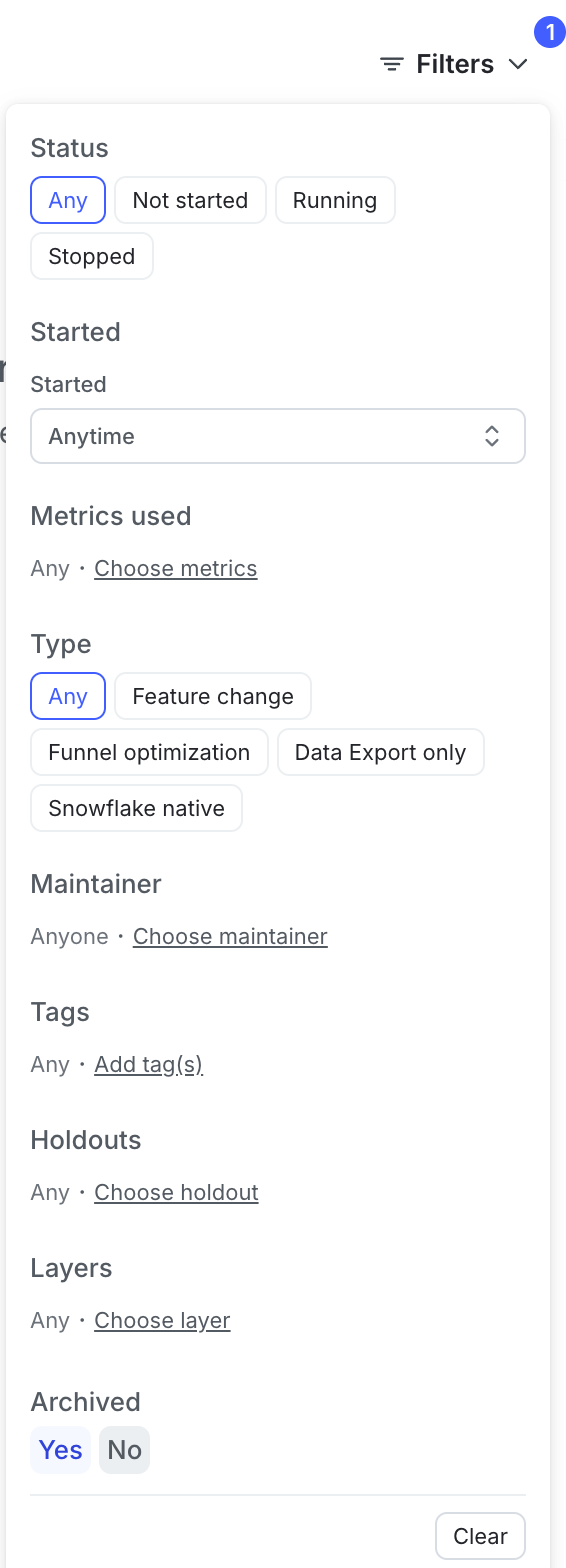
To view archived experiments on the **Experiments** list, click **Filters** and select **Yes** in the "Archived" section. To restore an experiment, navigate to the experiment's **Design** tab and click **restore this experiment**.
To switch back to viewing active experiments, click **View** and select **No** in the "Archived" section.
When you archive or restore an experiment, LaunchDarkly sends the maintainer and anyone following the experiment an email, an in-app notification, and, if you have the Slack app integration configured, a Slack notification.
Experiments and experiment settings are specific to single environments. If you want to run the same experiment in different environments, you must create and run the experiment in each environment individually.
You can also use the REST API: [Patch experiment](/api-reference/experiments/patch-experiment)