> ## Documentation Index
> Fetch the complete documentation index at: https://launchdarkly-preview.mintlify.site/llms.txt
> Use this file to discover all available pages before exploring further.
# Tools in AI Configs
> This topic explains how to manage and use tools in AI Configs.
> For the complete documentation index, see [llms.txt](/llms.txt). For the full documentation snapshot, see [llms-full.txt](/llms-full.txt).
## Overview
This topic explains how to manage and use tools in AI Configs. Tools are reusable, versioned definitions that let AI Configs trigger actions you define in code. Tools allow large language models (LLMs) to retrieve data or take actions on behalf of a user. You can attach tools to AI Config variations, including variations in agent mode. The tools library provides a central location to maintain consistency across projects.
Tools are reusable, versioned definitions that let AI Configs trigger actions you define in code. You can attach tools to variations in both completion mode and agent mode. Tools can retrieve data, call external APIs, or support multi-step workflows.
In agent mode, tool usage is coordinated through structured instructions. Tool invocation depends on your application and SDK implementation, not on the AI Config mode. All AI Configs share the same tool library, so you can define a tool once and reuse it across multiple configurations.
## Benefits of tools in AI Configs
Using tools in AI Configs offers organizational and technical advantages that support consistent, auditable workflows.
Key benefits are:
* Reuse tools across multiple variations in both completion mode and agent mode.
* Track changes with versioned updates.
* Maintain consistency across projects.
* Integrate standardized actions into LLM workflows.
* Reduce duplication, improve discoverability, and support governance and auditability.
## Managing tools
You can manage tools from the **Library** in the left navigation or from the AI Config variation editor.
### Library
The Library appears directly under AI Configs in the left navigation. It shows a centralized list of models and tools in your project with two tabs: **Models** and **Tools**.
#### Models tab
From the **Models** tab, you can browse existing AI model configurations or create a new one.
To browse existing models:
1. In LaunchDarkly, click **Library**. The **Models** tab opens by default, showing the models available for your AI Configs.
2. Enter text in the search bar to search for an existing model. To refine results, click **Filters** and select from the available options.
To create a new model:
1. Navigate to the **Library** page.
2. Click **Add AI model config**. The "Add custom model" dialog appears.
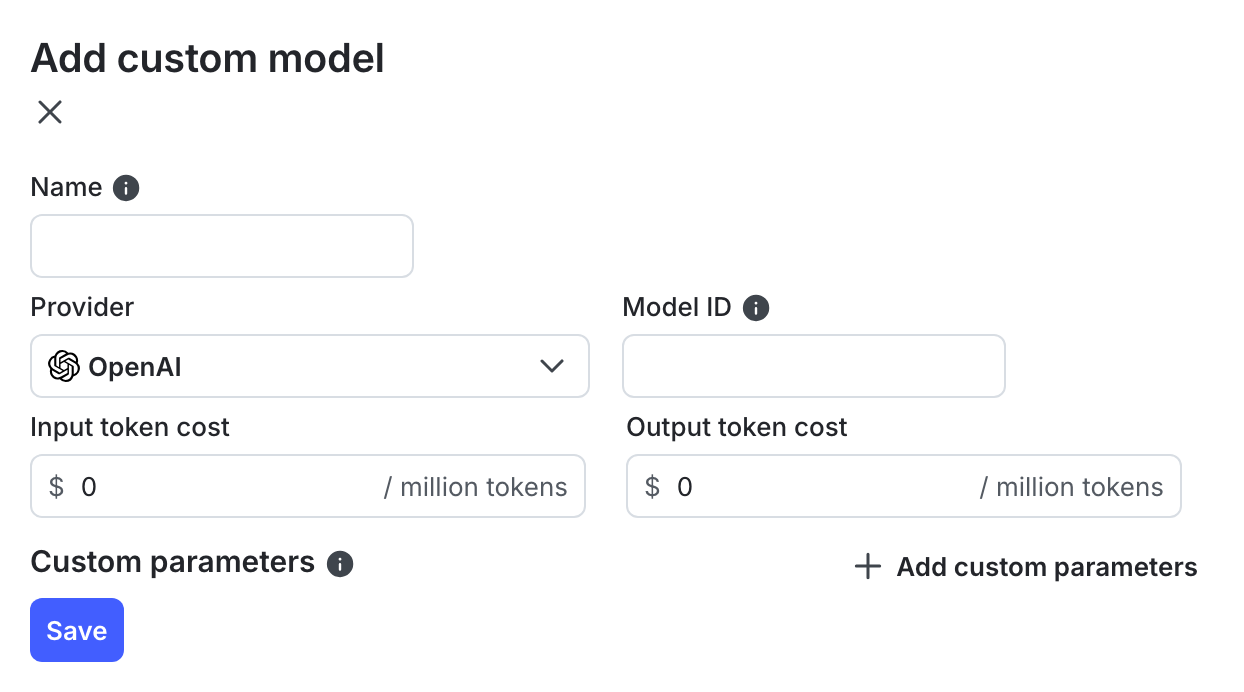
3. Enter a name for the custom model. Use this name to identify the model within LaunchDarkly. It does not map to any model properties.
4. Select a provider.
5. Select a model ID. This identifier must match the model you want to use with the provider.
6. Add the input token cost and the output token cost.
7. (Optional) Click **+ Add custom parameters** to supply additional configuration.
8. Click **Save**.
#### Tools tab
From the **Tools** tab, you can browse existing tools or create a new one.
To browse existing tools:
1. Navigate to the **Library** page.
2. Click **Tools**.
3. Enter text in the search bar to search for an existing tool.
To view previous versions of a tool, open the tool and click **View versions**.
To create a new tool:
1. Navigate to the **Library** page.
2. Click **Tools**.
3. Click **Add tool**. The **Create tool** dialog appears.
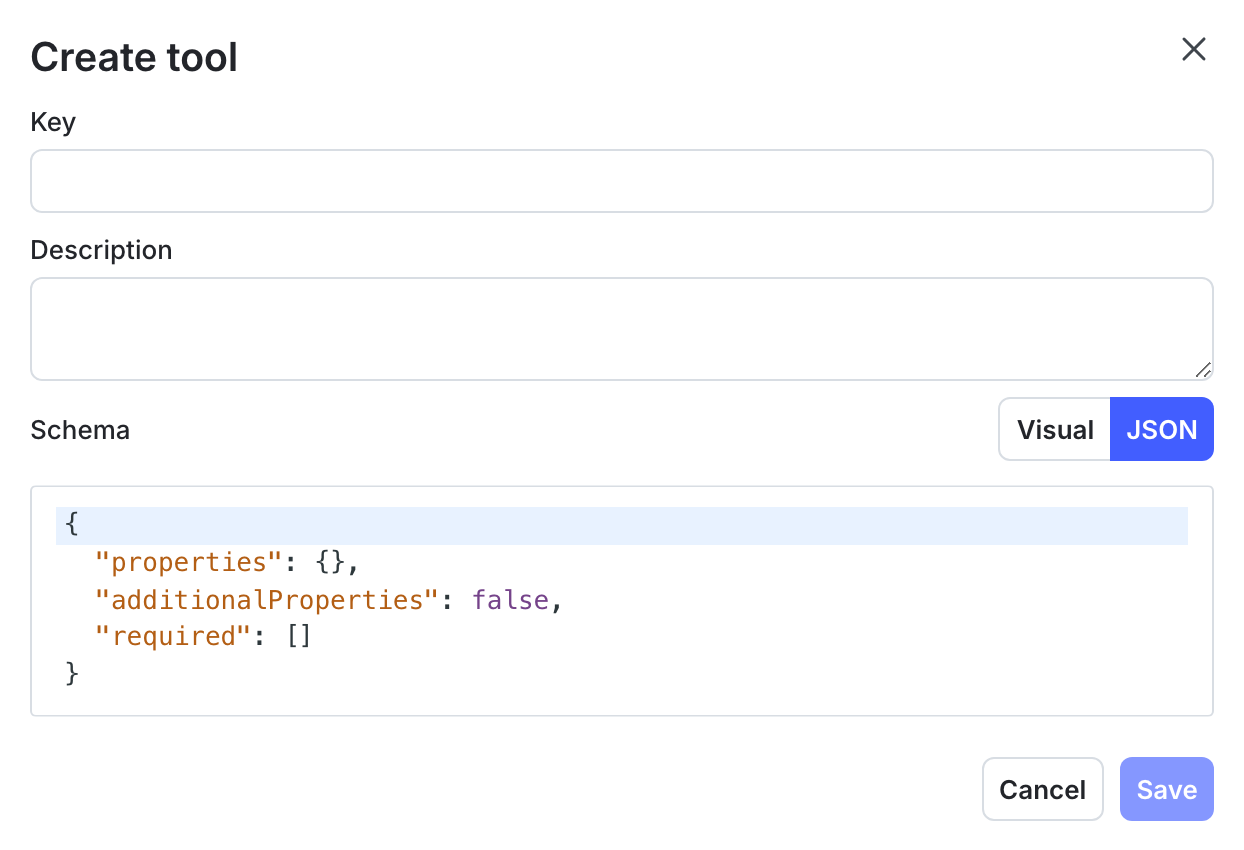
4. Enter a key for the tool. Keys must be alphanumeric and can include underscores and hyphens.
5. Enter a description for the tool.
6. Define the schema using the visual editor or the JSON editor.
7. Click **Save**.
### Variation editor
When editing an AI Config variation, you can attach or detach tools, change tool versions, create new tools inline, and explore the tools library.
To manage tools in a variation:
1. Navigate to the **AI Configs** page.
2. Click the name of the AI Config you want to edit.
3. Select the **Variations** tab and open the variation you want to manage.
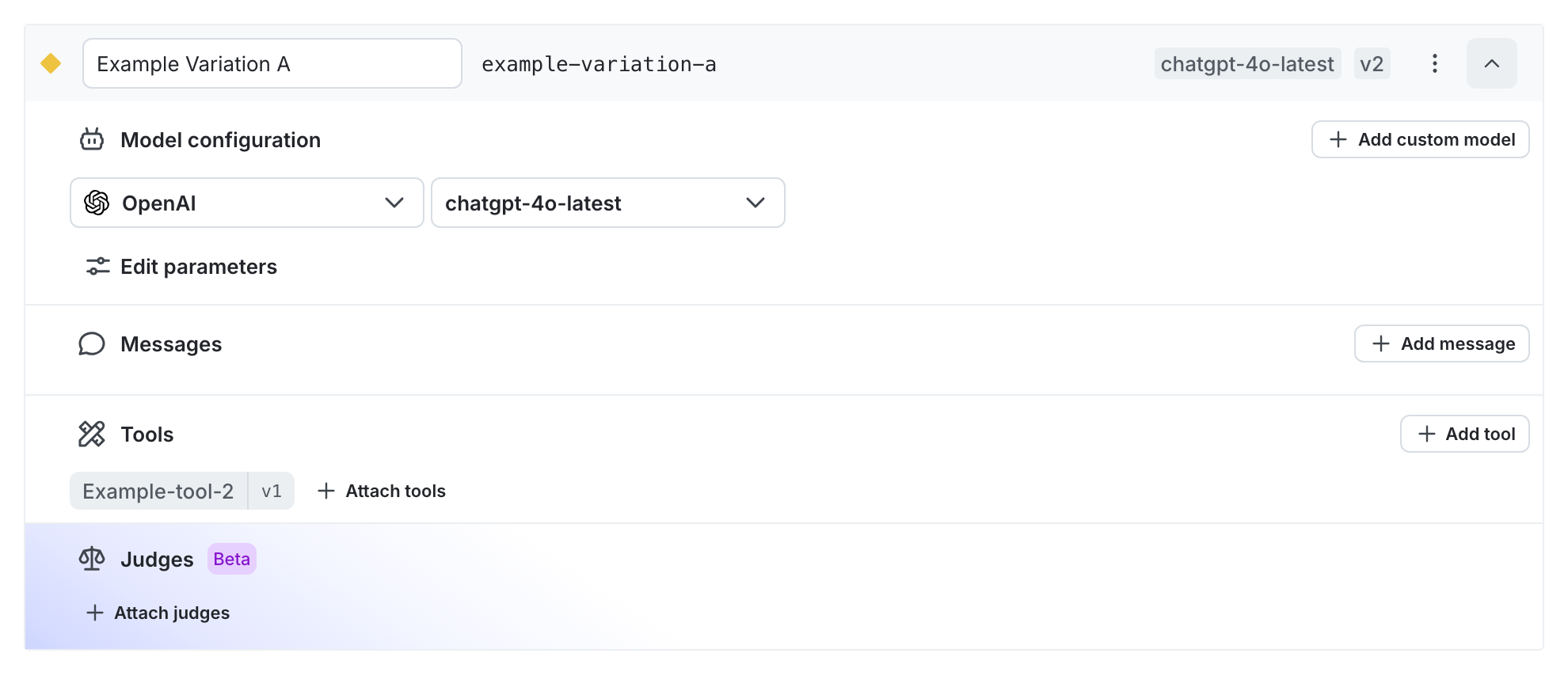
Attach or detach tools:
1. Click **+ Attach tools**.
2. Check or clear the box for the tool.
Change the version of an attached tool:
1. Click the version number next to the tool name.
2. Select a version.
Create a new tool inline:
1. Click **+ Add tool**. The **Create tool** dialog appears.
2. Enter a key, description, and schema for the tool.
3. Click **Save**.
Explore the tools library:
1. Click **+ Attach tools**.
2. Click **Explore tools**.
3. Use the **Find a tool** dialog to search for existing tools.
### Legacy tools warning
If your variation defines a `tools` field inside a model or custom parameter, LaunchDarkly treats it as a legacy tools configuration.
You may see the following banner:

This means:
* Tools are currently defined as raw JSON in parameters
* LaunchDarkly does not manage or validate these tools
* Your application is responsible for passing them to the model provider
If you attach tools using the tools library:
* LaunchDarkly removes or ignores the legacy `tools` field in parameters
* Attached tools become the source of truth for the variation
* The SDK returns tools in a new, structured `tools` field
This message does not indicate an error. It helps you understand that switching to the tools library replaces the existing parameter-based configuration.
## Use tools
To use tools with AI Configs:
1. Create a tool in the library or from within a variation.
2. Define the tool schema using the visual editor or the JSON editor.
3. Attach the tool to an AI Config variation, including variations in agent mode.
4. Deploy the variation. During execution, attached tools are available for the LLM to invoke.