> ## Documentation Index
> Fetch the complete documentation index at: https://launchdarkly-preview.mintlify.site/llms.txt
> Use this file to discover all available pages before exploring further.
# Google OAuth
> This topic explains how to configure Google OAuth for LaunchDarkly.
> For the complete documentation index, see [llms.txt](/llms.txt). For the full documentation snapshot, see [llms-full.txt](/llms-full.txt).
## Overview
This topic explains how to configure Google OAuth for LaunchDarkly.
This topic explains how to use Google OAuth. To learn how to configure single sign-on (SSO) for Google Workspace instead, read [Google Workspace](/home/account/google).
If a member signs in to LaunchDarkly using Google OAuth, they cannot also sign in to the same account using Google Workspace SSO. Similarly, if you invite a member to join a LaunchDarkly account using Google Workspace SSO, they cannot also sign in using Google OAuth.
LaunchDarkly OAuth also does not support multiple accounts with the same email address. You will not be able to use Google OAuth to sign if you belong to multiple accounts with the same email address.
To learn how to switch from logging in with a username and password to logging in with Google OAuth, read [our instructions in the LaunchDarkly help center](https://support.launchdarkly.com/hc/en-us/articles/18201781426843-How-to-switch-from-username-and-password-to-Google-OAuth).
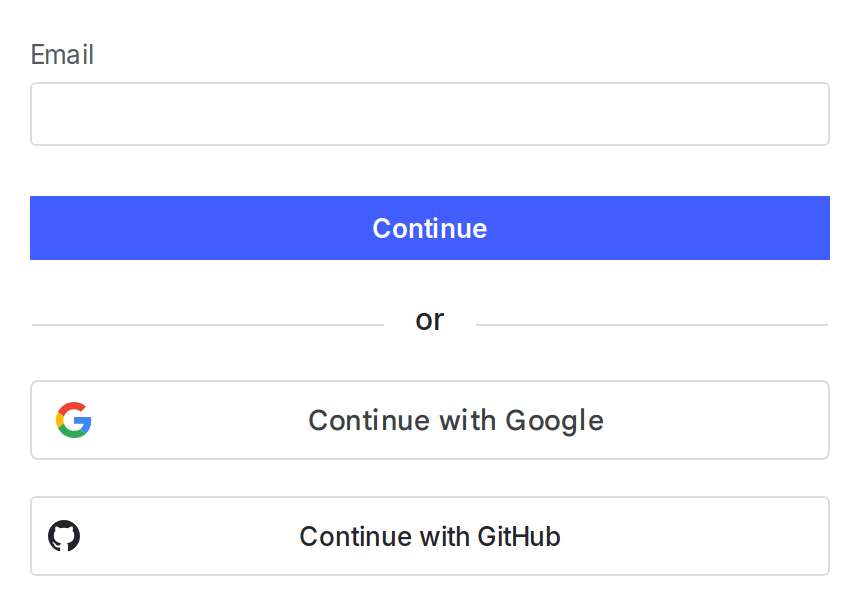
To sign in using Google OAuth, account members can use their Google account matching their LaunchDarkly login with the **Continue with Google** button on the LaunchDarkly sign in page:
If your organization uses Gmail and you have enabled domain matching, account members can also sign into LaunchDarkly using Google OAuth. To learn how to enable domain matching, read [Enable domain matching](/home/account/org-settings#enable-domain-matching).
After they create their account, LaunchDarkly will add them to the correct LaunchDarkly organization using domain matching. If your organization does not have domain matching enabled, completing the sign up form will create a new account with a 14-day trial.