> ## Documentation Index
> Fetch the complete documentation index at: https://launchdarkly-preview.mintlify.site/llms.txt
> Use this file to discover all available pages before exploring further.
# Domain verification
> This topic explains how to verify your domain with LaunchDarkly. This allows members of your organization to access supporting services if your account uses single sign-on (SSO).
> For the complete documentation index, see [llms.txt](/llms.txt). For the full documentation snapshot, see [llms-full.txt](/llms-full.txt).
## Overview
This topic explains how to verify your domain with LaunchDarkly. This allows members of your organization to access supporting services if your account uses single sign-on (SSO).
LaunchDarkly serves as the identity provider (IdP) for the platform that powers our support service at [https://support.launchdarkly.com](https://support.launchdarkly.com/).
If your account uses SSO, then after you verify your domain with LaunchDarkly, all account members who are logged in to LaunchDarkly can access support directly. If your account does not use SSO in LaunchDarkly, account members will need to verify their email before accessing support.
## Verify your domain
To complete these instructions, you must have an Admin role in LaunchDarkly.
To verify your domain with LaunchDarkly:
1. Click the **gear** icon in the left sidenav to view Organization settings.
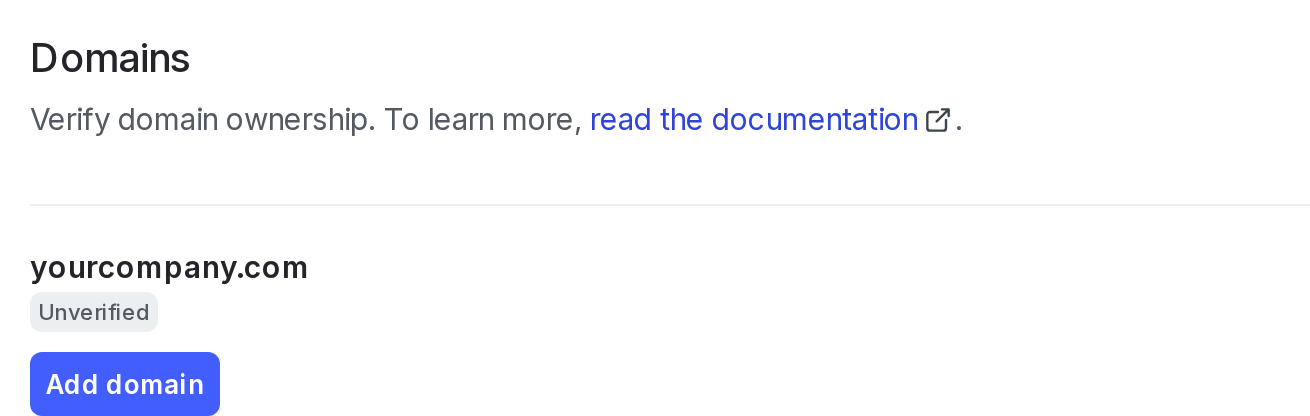
2. Click **Security** and scroll to the "Domains" section.
3. In the "Domains" section, click **Add domain**. The "Add a domain" dialog appears.
4. In step 1 of the dialog, enter your **Domain name**.
5. Click **Add domain**.
6. In step 2 of the dialog, copy the "Name" and "TXT Record."
The TXT record is visible one time, immediately after you add a domain. If you leave or refresh the page where the TXT record is displayed, it will no longer be visible. You must copy your TXT record before you leave the "Add a domain" dialog, or you will lose access to the record.
7. Log in to your domain registrar and add the TXT record.
8. In LaunchDarkly, in step 2 of the dialog, click **Done**.
9. Find the newly added domain in the "Domains" section. Click **Verify**.
### Remove domains
To remove a domain from your list of verified domains:
1. Click the **gear** icon in the left sidenav to view Organization settings.
2. Click **Security** and scroll to the "Domains" section.
3. Locate the domain you want to remove. Click **Remove**.